
Marqii Dashboard Best Practices
This checklist is designed to help you navigate the dashboard efficiently and ensure you’re fully optimized. Following these steps will put you in the best position for both SEO (how your business appears in traditional search results) and GEO (how you show up in AI-driven searches).
Think of this as a simple guide to reference as you work through your account.
⸻
Why This Matters
Optimizing your dashboard ensures your locations are accurate, visible, and competitive across all platforms. Keeping things up to date helps improve discoverability, prevents issues with listings, and strengthens how your brand appears both to customers and in AI-generated results.
⸻
Locations Tab: Health Score
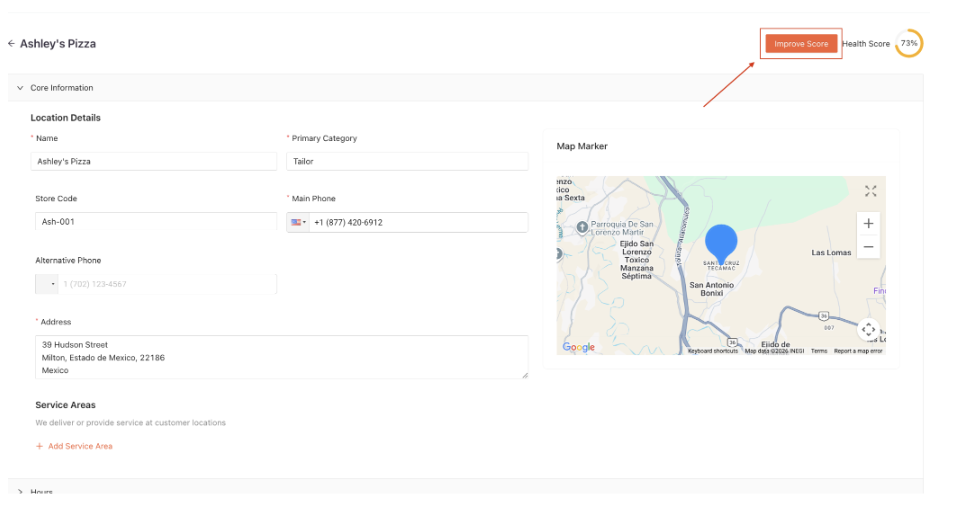
The Health Score is a quick way to understand how optimized each location is.
What to Do:
Click into the score for more details
Select the orange “Improve Score” button in the top right to see recommended actions
⸻
Listings Tab: Failed Listings
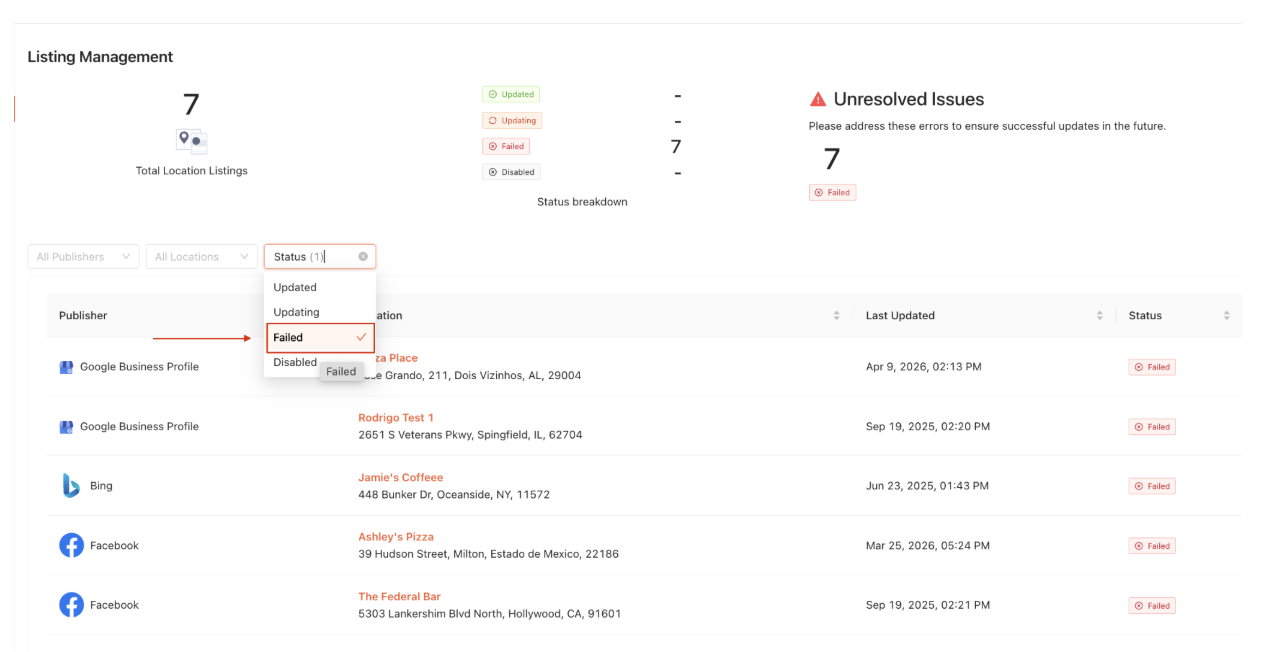
Failed listings will prevent updates from pushing to the publisher.
What to Do:
Filter by Status → Failed
Identify any listings that are not successfully publishing
Reach out to support@marqii.com or onboarding@marqii.com for troubleshooting assistance
⸻
Social Management: (Posts, Showcases, and Visibility)
Posting across publishers helps expand your keyword reach and improves both SEO and GEO by keeping your content fresh and relevant.
What to Do:
Create posts within the dashboard
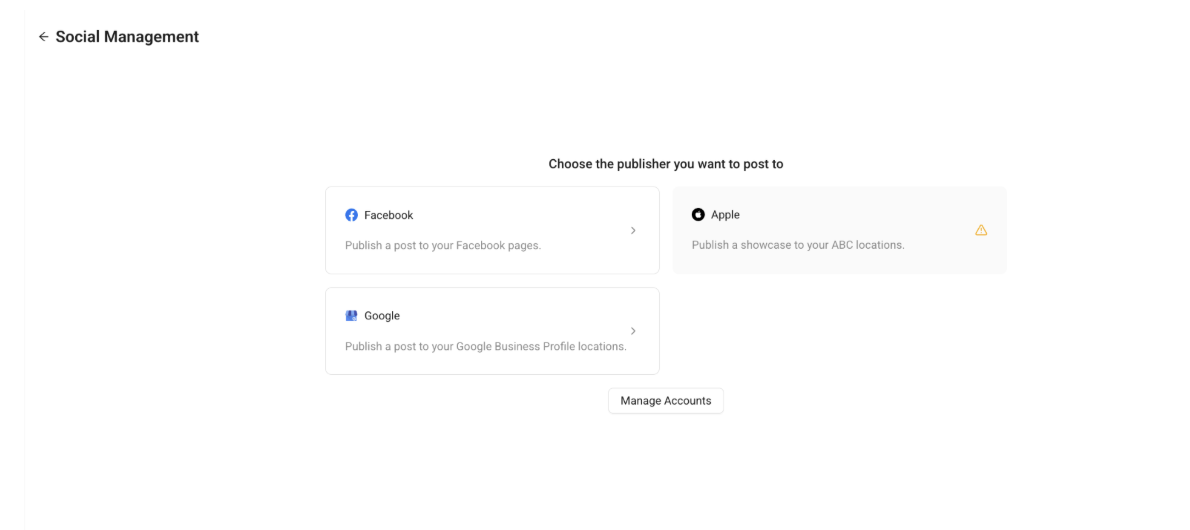
Follow the fields provided for each publisher (Facebook, Google, Apple) to ensure posts are optimized
Use relevant keywords naturally in your posts to improve visibility
Important Note on Apple (Showcases):
Apple posts are called “Showcases”
Only one showcase can be live at a time
Posting a new showcase will replace the current one
Example:
If you have an ongoing weekly event (like Karaoke every Wednesday) and then create a post for a Valentine’s Day menu, the Valentine’s post will replace the Karaoke showcase. Once the promotion ends, you will need to ‘re-post’ the Karaoke showcase.
⸻
Widgets: (Menus & Hours)
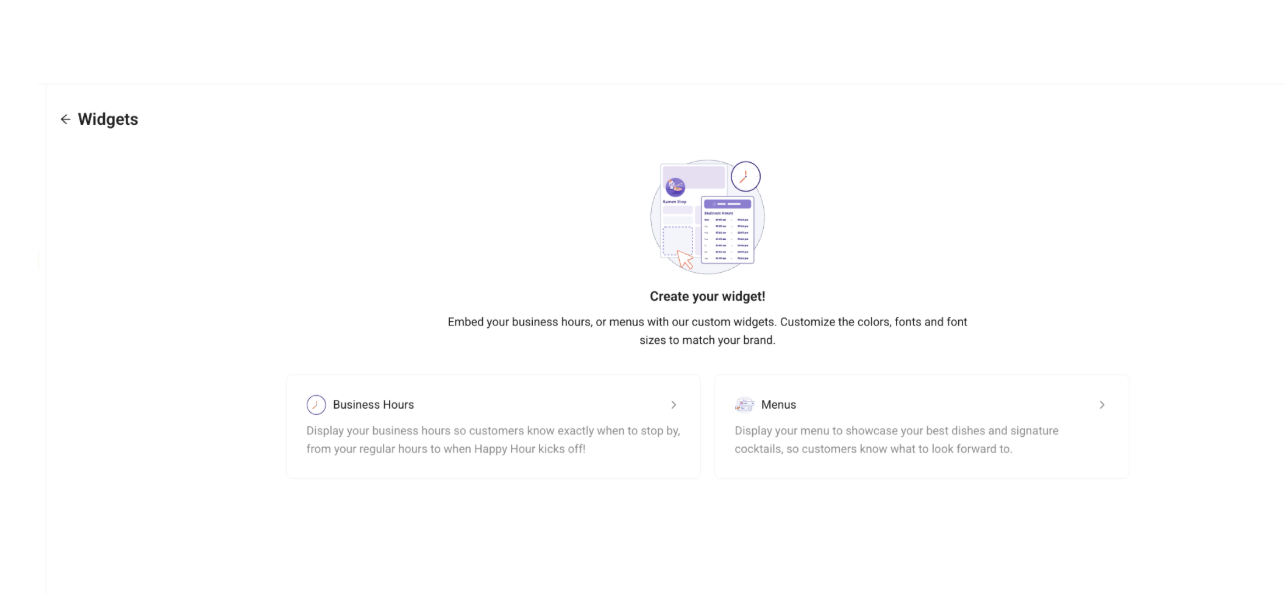
Widgets are embedded directly into your website and automatically update your hours and menus whenever changes are made in the dashboard. This helps maintain consistency across platforms and strengthens both SEO and GEO by providing structured, up-to-date information.
What to Do:
Determine which widget you are creating: Menus or Hours (each will have different fields)
Name the widget for internal use (ex: “Houston Location”)
Select the correct location
Choose which menus or hours you want visible (you can pick and choose specific sections)
Customize the widget to match your website styling as closely as possible
Click save, then copy and paste the embed code into your website backend
Important Note:
Widgets will NOT go live or appear on your website unless all steps are completed
You must click “Save” → copy the embed code → paste it into your website backend
Example:
If you update your holiday hours or menu in the dashboard, the widget will automatically reflect those changes on your website—no additional updates needed on your end after it’s embedded.
⸻
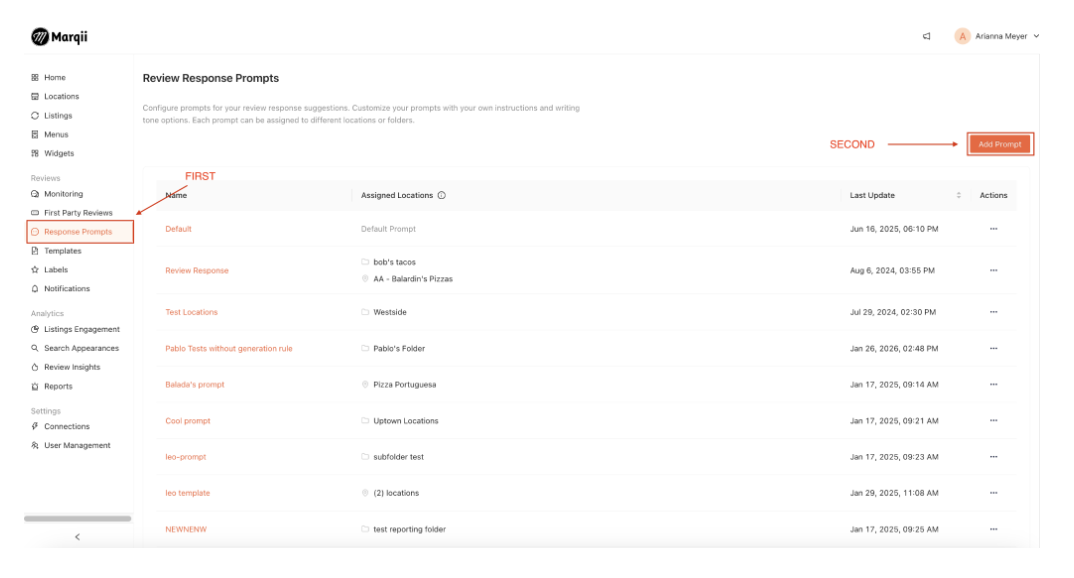
Response Prompts (AI Review Responses)
Best Practices for Setting Up Suggested Review Response Prompts
What to Do:
Build out prompts that reflect your brand voice and how you would personally respond
Remember: AI is only as effective as you train it to be
Review each response before publishing by clicking “Reply” and adding a human touch
⸻
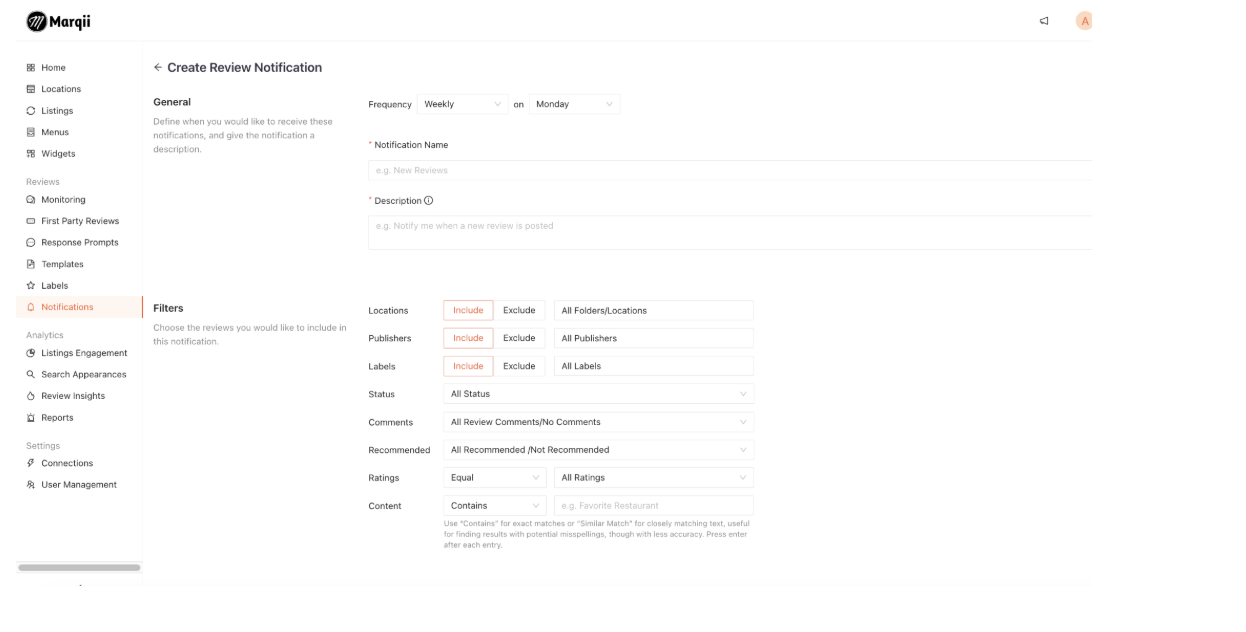
Review Notifications
Stay informed on customer feedback in real time or on a schedule that works for you.
What to Do:
Set up review notifications
Customize which reviews you receive (all, low ratings, etc.)
Choose how frequently you’d like to be notified
Navigate to the the ‘Notifications’ Tab, select ‘Add Notifications’
⸻
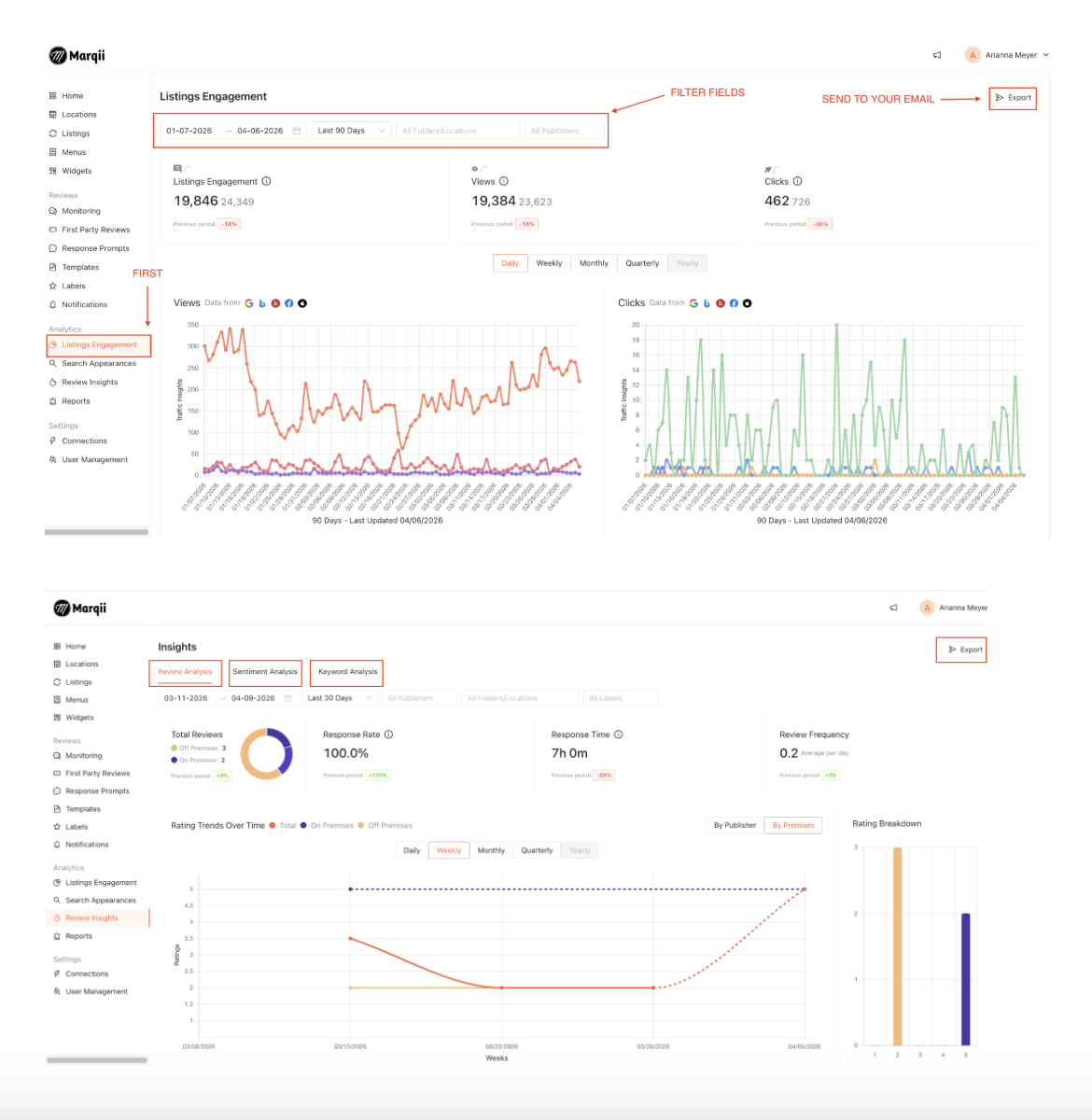
Reporting & Data Exports
Your dashboard provides valuable insights you can easily share.
What to Do:
Navigate to:
Listing Engagement
Review Analytics
Sentiment Analysis (found within Review Analytics tab)
Keyword Analysis (found within Review Analytics tab)
Apply filters as needed
Export reports as PDFs directly to your email
⸻
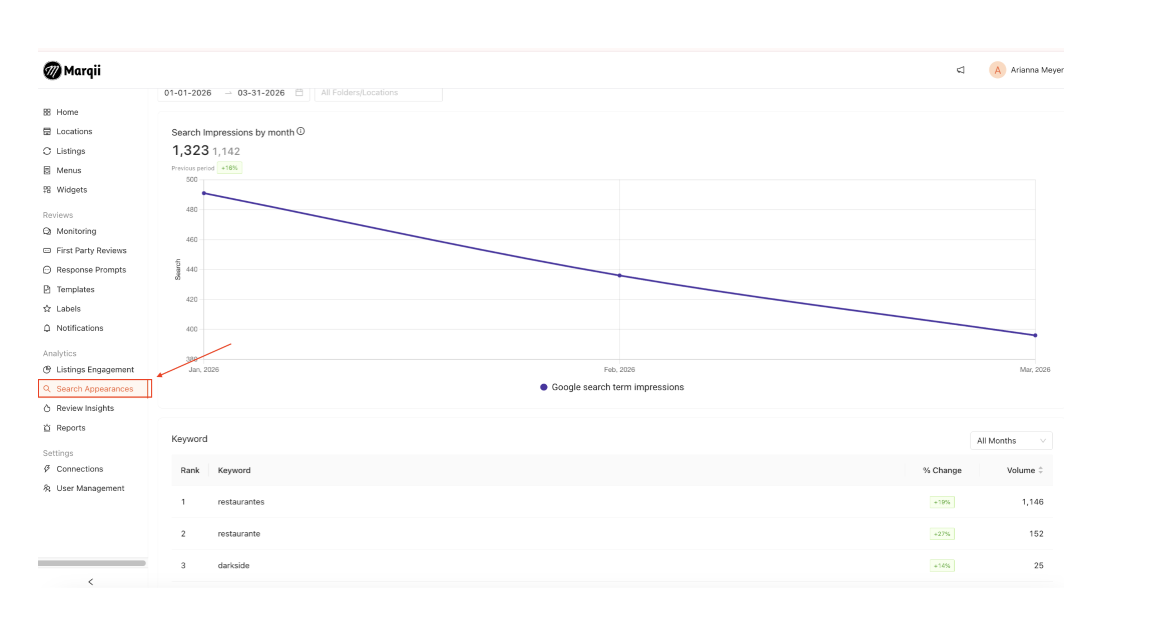
Keyword Analysis (SEO & GEO Optimization)
This is where you can see how customers are finding you.
What to Do:
Review the keywords your locations are currently ranking for
Identify keywords you want to rank higher for
Incorporate those keywords into:
Location descriptions
Review responses
Photo captions
⸻
Can You Confidently Navigate the Dashboard Using This Checklist?
Are all locations optimized based on their Health Score?
Are there any failed listings that need attention?
Do your AI responses reflect your brand voice?
Are review notifications set up in a way that works for you?
Are you regularly reviewing and using reporting data?
Are you actively leveraging keywords to improve visibility?
⸻
We’re always happy to help with any of this, but these tools will give you a strong foundation to confidently manage and optimize your account.