Managing Your Conversations in Marqii Assistant
Last updated: October 19, 2026
Marqii Assistant saves your conversations so you can pick up where you left off. You can start a fresh conversation for each new task, return to past conversations from the history list, and rename or delete them at any time. This article also covers sending messages while the assistant is still replying, stopping a reply, and how your conversation follows you around the dashboard.
Your Conversation Follows You Around the Dashboard
You can open the assistant from the floating button in the bottom-right corner of any page, or by selecting AI Assistant in the left menu for a full-page view. Both show the same conversation, so you can start in one and continue in the other.
Moving between pages: The panel stays open, and a reply in progress keeps going while you move around the dashboard. You can also close the panel while it works and reopen it later.
Reloading the page: The panel closes, but your current conversation is remembered and comes back when you reopen it.
Other browser tabs: The assistant opens the same current conversation in every tab. If you switch conversations in one tab, your other tabs follow.
Note: Your conversations are tied to your sign-in and your Marqii account. Other people on your team can't see them. See Marqii Assistant Privacy and Data FAQ.
How to Start a New Conversation
In the assistant panel header, click the refresh icon (Start a new conversation).
Type your message, or click one of the suggested prompts to send it right away.
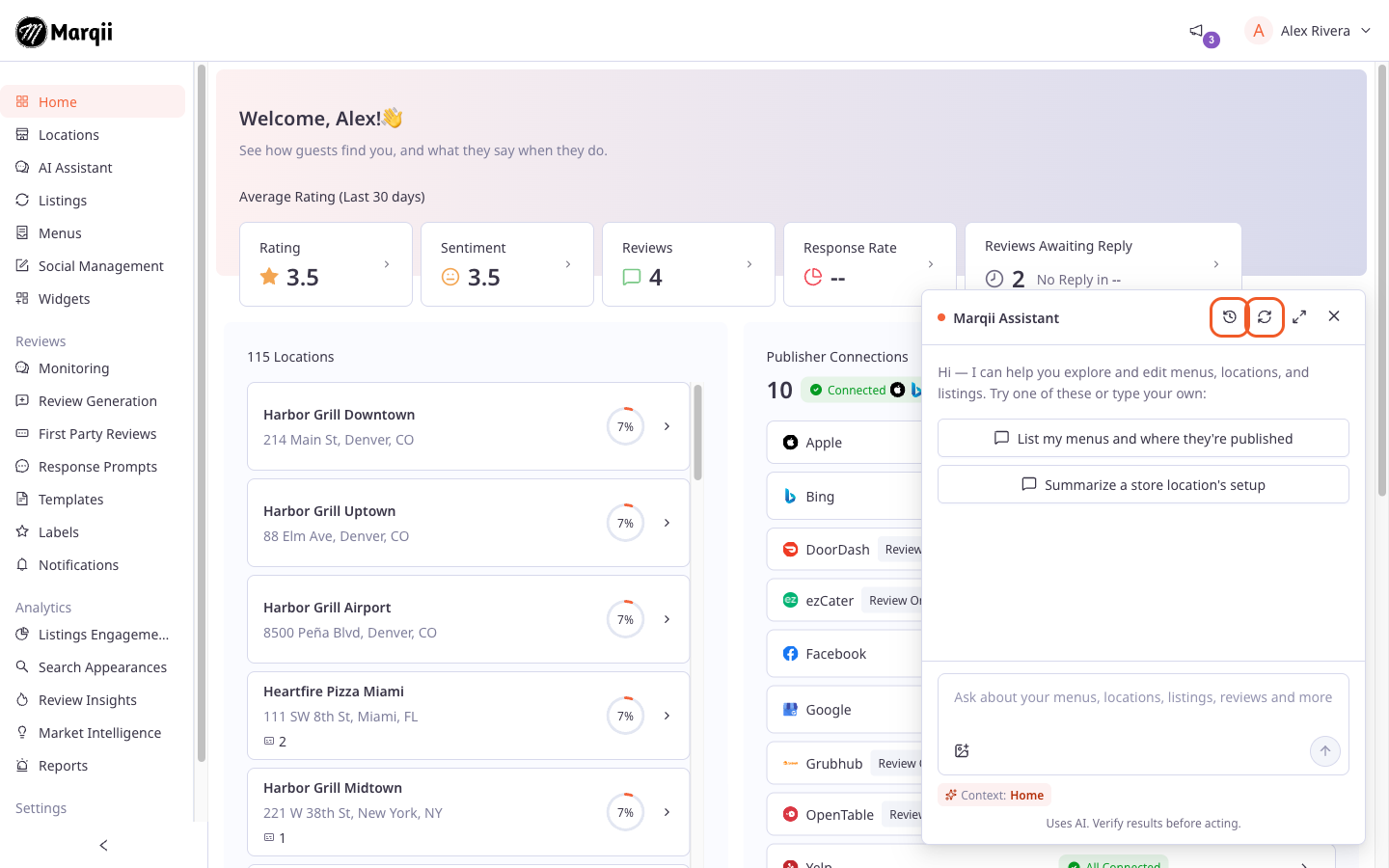
Your first message becomes the conversation's name in your history (up to 80 characters). You can rename it later.
Tip: Start a new conversation when you switch to an unrelated task, such as moving from menu updates to review questions. The assistant stays focused, and each conversation is easier to find later.
If the assistant is still replying when you start a new conversation, that reply keeps running in the earlier conversation. You can return to it from your history.
How to Return to a Past Conversation
In the assistant panel header, click the clock icon (Conversation history).
Click a conversation in the list to open it.
Each conversation shows its name and when it was last active. The conversation you're currently in is highlighted. Conversations without a name show as Untitled conversation.
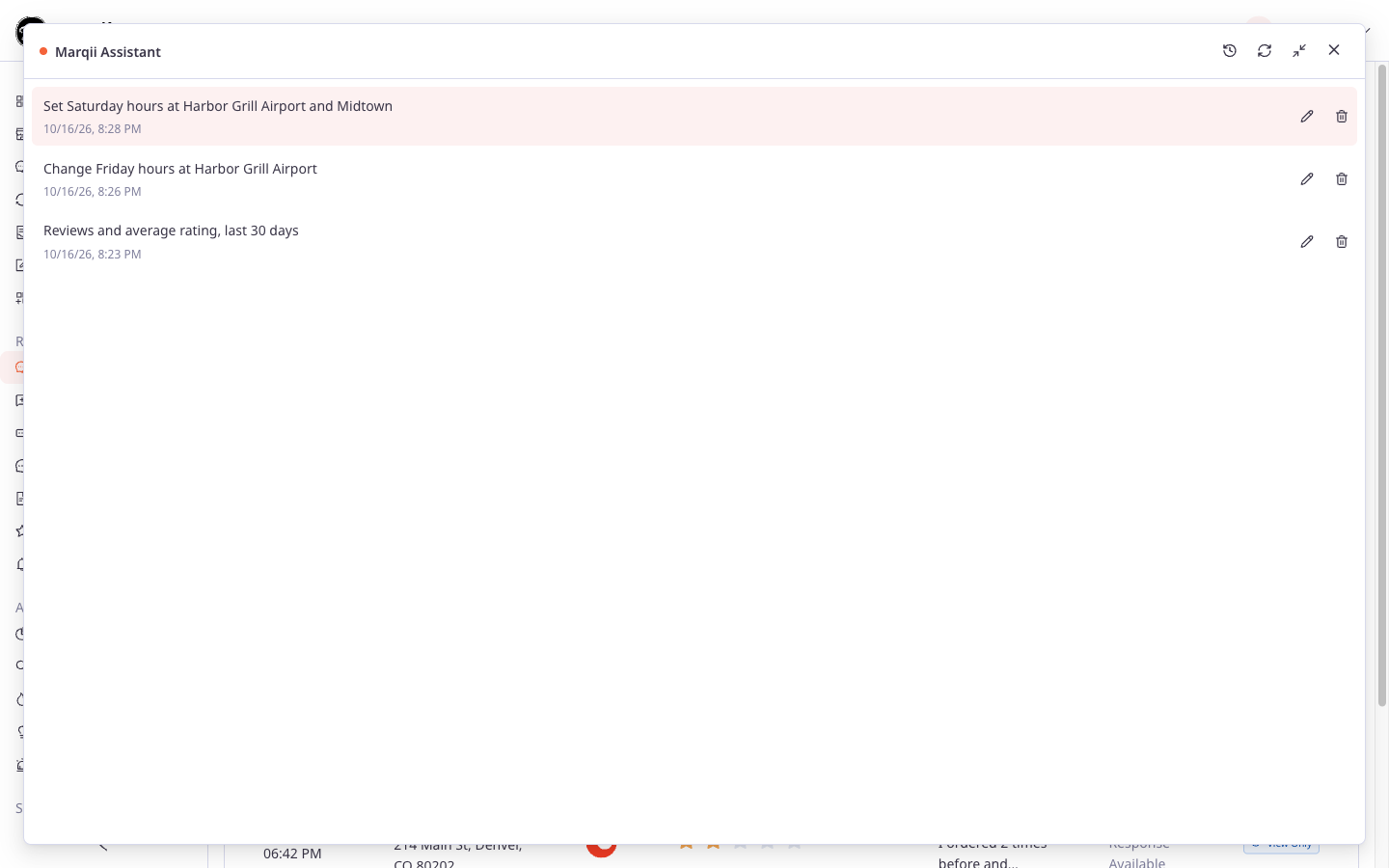
Good to know about the history list:
It shows your 50 most recent conversations. Older ones aren't listed.
A conversation is removed after 30 days with no activity. Sending a new message resets the clock.
If the list can't load, you'll see "Couldn't load your conversations." Click Retry.
If you have no saved conversations yet, you'll see "No past conversations yet."
In very long conversations, the chat shows your most recent 40 messages. In a long conversation the assistant may also lose track of details from much earlier on. If you're starting a new task or need it to focus, start a new conversation and include the key details in your first message.
How to Rename a Conversation
Open Conversation history.
Click the pencil icon (Rename conversation) next to the conversation.
Type a new name (up to 100 characters).
Press Enter or click the check mark (Save name). To cancel, press Esc or click the X (Cancel).
How to Delete a Conversation
Open Conversation history.
Click the trash icon (Delete conversation) next to the conversation.
Important: Deleting happens immediately, with no confirmation step, and can't be undone. The conversation's messages and any images you attached in it are deleted.
If you delete the conversation you're currently in, the panel returns to a new, empty conversation.
Deleting a conversation doesn't undo any changes the assistant made in it. Those changes stay in place.
Sending Messages
Press Enter to send your message.
Press Shift+Enter to start a new line without sending.
There's no need to wait for the assistant to finish before you type your next thought.
Queueing Messages While the Assistant Is Replying
While the assistant is replying, the message box shows "Queue a follow-up — sends when this reply finishes." You can keep typing and pressing Enter:
Each message you send is added to a list above the message box, for example 2 messages queued.
To remove a queued message, click the X (Remove queued message) next to it.
When the reply finishes, all of your queued messages are sent together as one message.
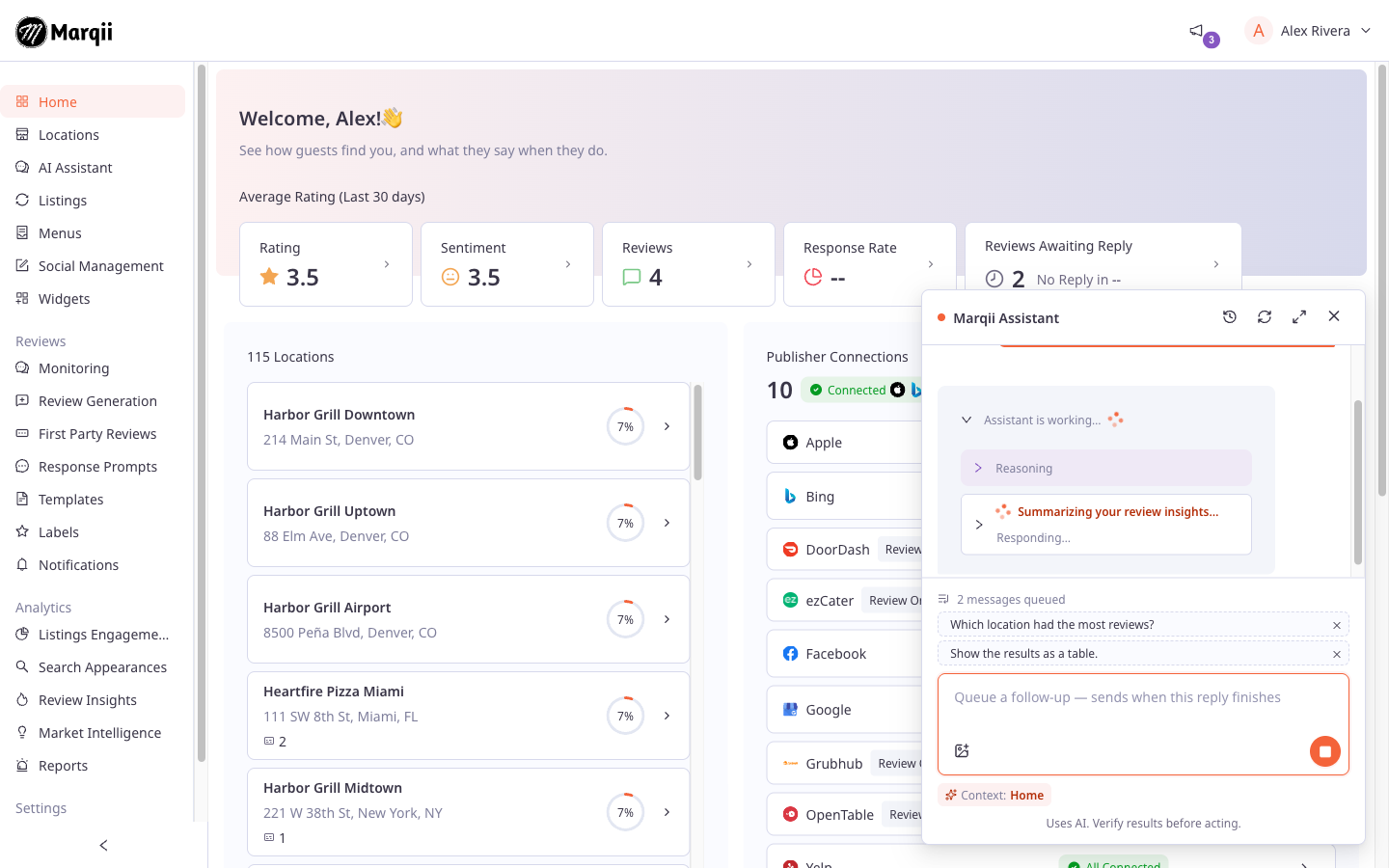
If the reply is stopped, runs into an error, or ends with a change waiting for your approval, your queued messages aren't sent. They're moved back into the message box so you can edit or send them yourself.
Note: Messages with images can't be queued. They stay in the message box until the reply finishes. See Attaching Images in Marqii Assistant.
Queued messages and unsent drafts are kept when you switch between conversations, but not if you reload the page.
How to Stop a Reply
While the assistant is replying, the send button turns into a square stop button (Stop response). Click it to stop the reply.
The part of the reply you've already seen stays in the conversation.
Any step that was in progress shows Interrupted.
You can send a new message right away.
Important: Stopping a reply may not undo a change you already approved. If the change was already on its way, it may still go through. Check before asking again. See Reviewing and Approving Changes in Marqii Assistant.
Copying a Reply
To copy a message, hover over it and click the copy icon (Copy message). On a phone or tablet, the copy icon is always visible. You'll see "Message copied to clipboard" when it works.
Related Articles
Can't find what you're looking for? Email us at support@marqii.com or text us at (512) 967-3739.