Getting Started with Marqii Assistant
Last updated: October 19, 2026
Marqii Assistant is an AI helper built into your Marqii dashboard. Ask it a question in plain language, like "Which of our listings failed to sync?" or "Show me last week's 1-star reviews", and it looks up the answer in your Marqii account. It can also make changes for you, such as updating hours or menu prices, but nothing changes until you click Approve. This article shows you how to open the assistant, find your way around the chat panel, and have your first conversation.
Who Marqii Assistant Is For
Marqii Assistant is for anyone who uses the Marqii dashboard: owners checking on their business, marketers working on reviews and social posts, and operations teams managing many locations at once. You don't need any special setup or technical knowledge. If you can describe what you want, the assistant can help you find it or do it.
The assistant works only with your own Marqii account, and only with what you already have access to. It can't do anything you couldn't do yourself in the dashboard.
How to Open Marqii Assistant
There are two ways to open the assistant. Both show the same conversation, so you can switch between them at any time.
Option 1: The floating button
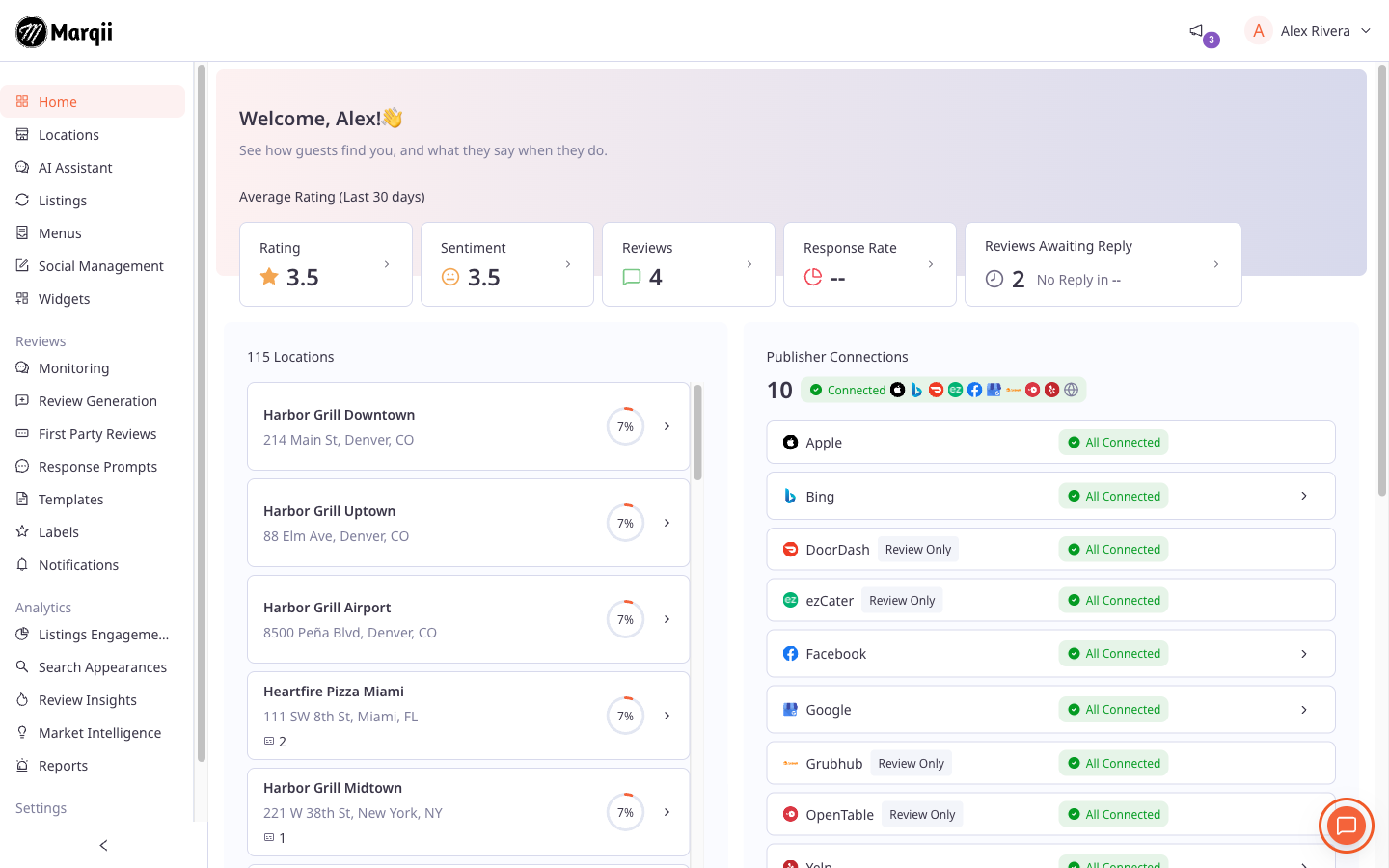
On any page of the dashboard, find the round chat button in the bottom-right corner. Hover over it to see Ask the Marqii Assistant.
Click the button. The Marqii Assistant panel opens on top of the page you're on.
Keep working on the page behind the panel. The panel stays open as you move between pages.
Option 2: The AI Assistant page
In the left menu, select AI Assistant.
The assistant opens as a full page, which gives you more room for longer answers and tables.
Tip: Use the floating button when you want help with the page you're looking at. Use the AI Assistant page when you want a bigger workspace for a longer conversation.
Option | Best for |
|---|---|
Floating button | Quick questions while you work on another page. The assistant knows which page you're on. |
AI Assistant page | Longer conversations, big tables and reports. |
Getting to Know the Panel
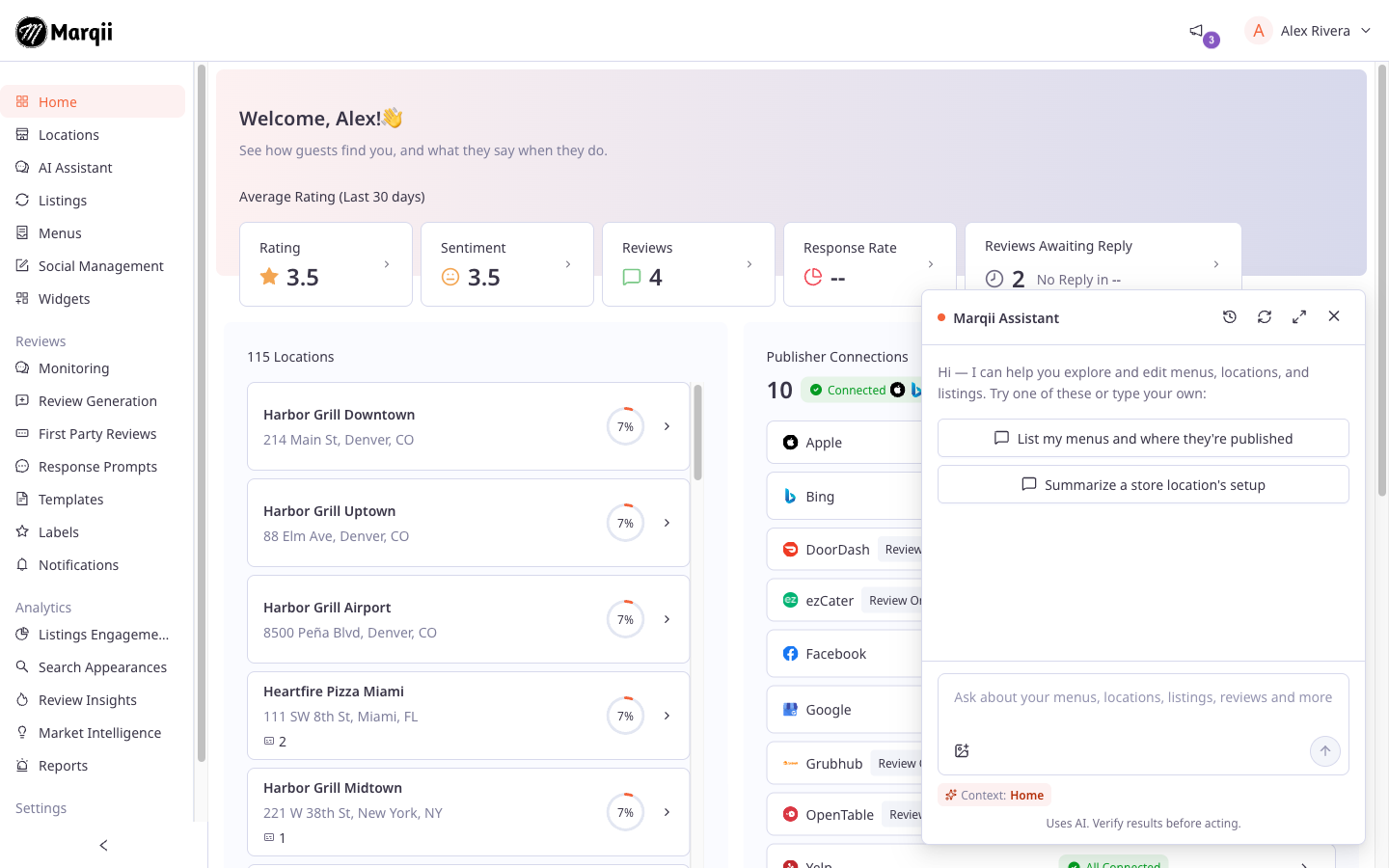
The top of the panel has these buttons:
Button | What it does |
|---|---|
Conversation history (clock icon) | Shows your past conversations so you can pick one up again. |
Start a new conversation (refresh icon) | Clears the panel and starts a fresh chat. Your previous chat is saved in your history. |
Expand to full width | Makes the floating panel fill most of the screen. Click Exit full width to shrink it again. |
Close assistant (X) | Closes the panel. Your conversation is saved. |
At the bottom of the panel:
The message box is where you type your request. Press Enter to send. Press Shift+Enter to start a new line.
Attach images (picture icon) lets you add a photo or screenshot for the assistant to look at. See Attaching Images in Marqii Assistant.
Context: shows the page the assistant thinks you're on, such as "Context: Menus" or "Context: Location Details". This is how it knows what you mean by "this menu" or "this location".
Uses AI. Verify results before acting. is a reminder that AI can make mistakes. Check important answers before you rely on them.
Suggested Prompts
When you start a new conversation, the assistant greets you and offers a few suggested prompts. They change depending on the page you're on. For example, on the Menus page you might see:
"List my menus and where they're published"
"Hide a menu"
"Rename a menu"
On the Locations page you might see:
"Summarize a store location's setup"
"Which listing providers is a location connected to?"
Click a suggested prompt to send it right away, or type your own request instead.
Note: The suggested prompts focus on menus, locations and listings, but the assistant can help with much more, including reviews, analytics, social posts and website widgets. See What Marqii Assistant Can Do.
How to Have Your First Conversation
Open the assistant using the floating button or the AI Assistant page.
Type a question in the message box. For example:
"How many locations do we have, and which ones are temporarily closed?"
"Show me reviews from last week with 2 stars or less at our Downtown location"
"Which of our listings haven't synced in the last week?"
Press Enter.
While the assistant looks things up, you'll see Assistant is working… with a short description of each step, such as "Fetching your menus…". When it's done, the row changes to Work completed and the answer appears below.
Ask a follow-up question in the same conversation. The assistant remembers what you've been talking about, so you can say things like "Now just show the Uptown location."
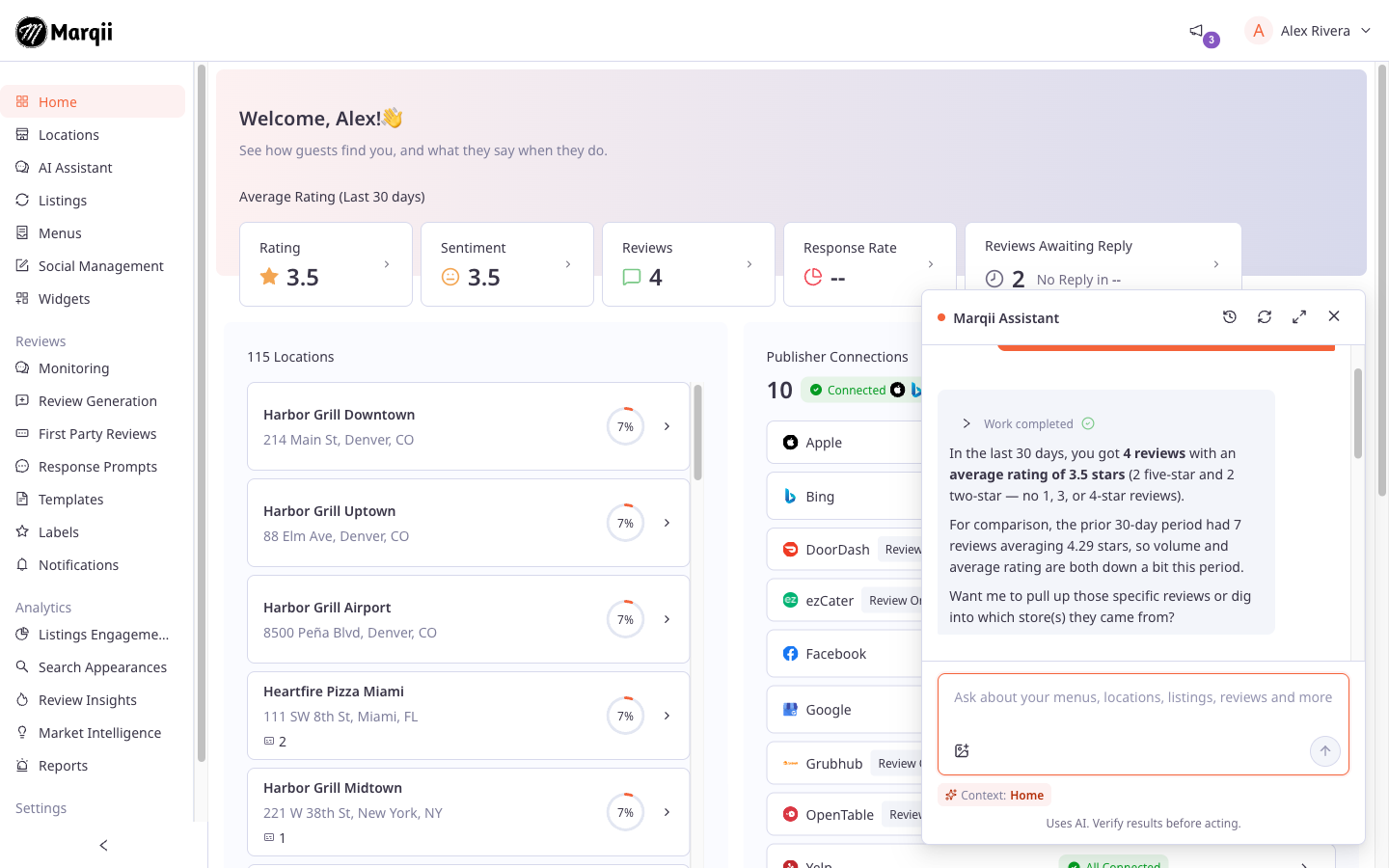
Tip: Click Work completed to expand it and see each step the assistant took. This is a good way to check what it looked up.
When the Assistant Wants to Make a Change
Looking things up happens right away. Changing anything in your account always needs your go-ahead. When you ask for a change, such as "Change Saturday hours at Uptown to 11am to 11pm", the assistant prepares it and shows Needs your approval with two buttons:
Approve makes the change.
Reject cancels it. Nothing is changed.
Review the details before you approve. To learn more, see Reviewing and Approving Changes in Marqii Assistant.
Important: The assistant never changes your account without asking. If you don't click Approve, nothing changes.
Your Conversations Are Saved
Your conversation stays with you as you move around the dashboard, and it's still there if you close the panel or reload the page. Use Conversation history to go back to an earlier chat. Other people on your account can't see your conversations. To learn more, see Managing Your Conversations in Marqii Assistant.
Note: If you don't see the floating button or AI Assistant in the left menu, Marqii Assistant may not be turned on for your account yet. Contact your account admin or Marqii support.
Related Articles
Can't find what you're looking for? Email us at support@marqii.com or text us at (512) 967-3739.