Reviewing and Approving Changes in Marqii Assistant
Last updated: October 19, 2026
Marqii Assistant can look up your locations, listings, reviews, menus, and more on its own, but it never changes anything without your approval. Every change, including creating, updating, deleting, publishing, scheduling, syncing a listing, or labeling a review, waits for you to click Approve first. This article covers how approvals work, what happens if you don't answer, and how to check that a change went through.
What Needs Your Approval
Type of request | Needs approval? | Examples |
|---|---|---|
Looking things up | No, it runs right away | Listing your menus, showing reviews, checking a location's hours, pulling Review Insights |
Taking you to a page | No | "Take me to Listings" |
Changing your data | Yes, every time | Updating hours, changing a menu item price, hiding a menu, labeling a review, re-syncing a listing |
High-impact changes | Yes, every time | Deleting menu items or sections, publishing or scheduling a social post, updating a website widget, temporarily closing a location |
The Approve button is how you confirm a change. The assistant usually won't ask "Shall I go ahead?" in the chat first. It prepares the change and shows you an approval card.
Note: For a few requests, the assistant asks you a question in the chat before it gets to the approval step. For example, it checks with you before adding a type of hours a location doesn't use yet (like a first-ever Happy Hour schedule), or before editing hours for a location marked as permanently closed.
How to Approve or Reject a Change
Ask the assistant to make a change, for example:
"Change Saturday hours at our Uptown location to 11am–11pm"
"Raise the price of the Classic Burger to $15"
"Hide the Brunch menu"
The assistant looks up what it needs, then shows the heading Assistant needs your approval. The step that needs your answer opens automatically with a gold Needs your approval tag.
Review the details on the card. Its title names the action, such as "Updating your opening hours…", and Input shows the details that will be sent, such as the location, item and new values.
Click Approve to make the change, or Reject to cancel it.
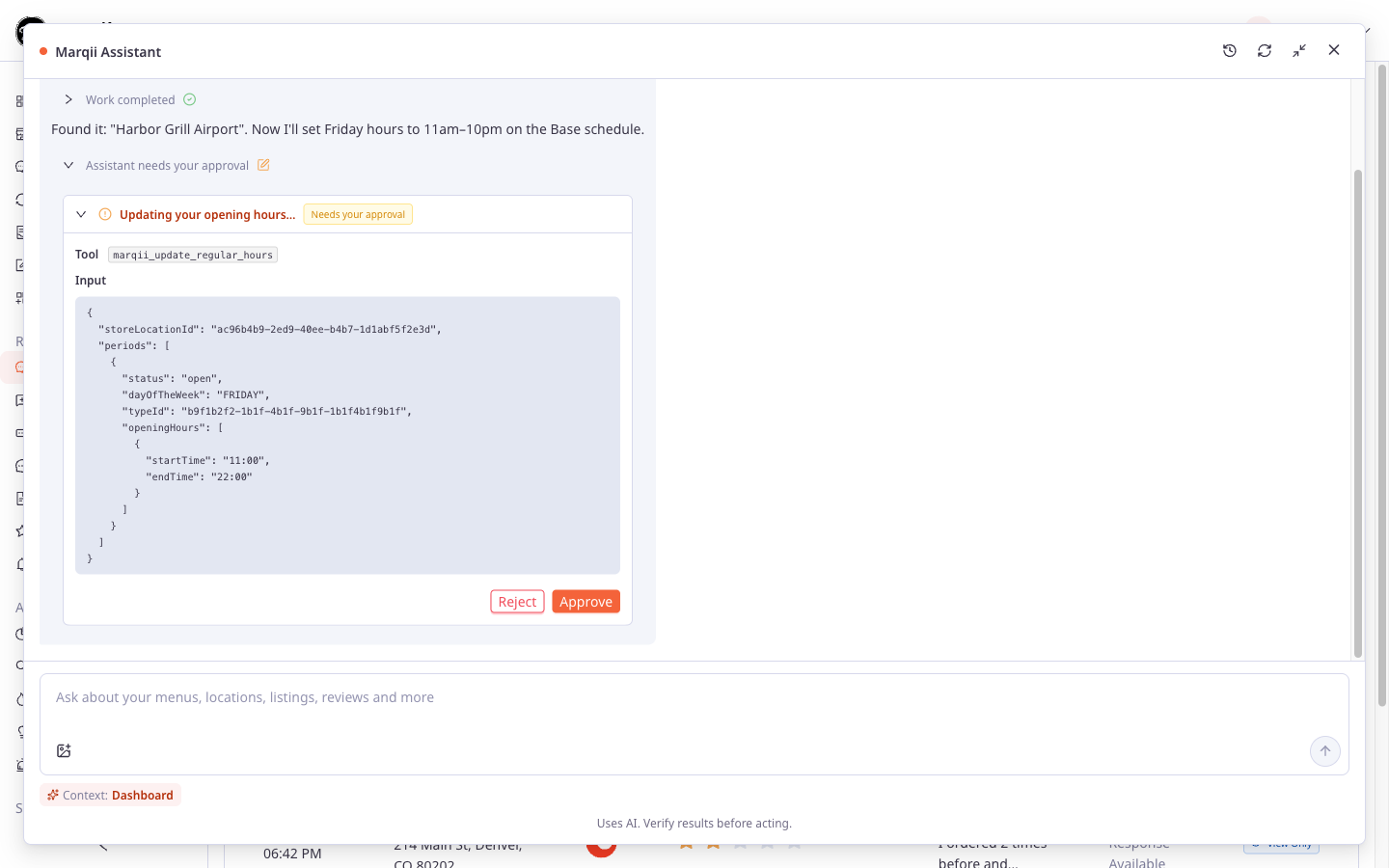
After you click Approve, you don't need to send anything else. The card shows Responding… and then Completed, and the assistant continues its reply, usually with a short summary of what changed.
If you click Reject, the card shows Denied. Nothing is changed, and the assistant continues. You can tell it what you'd like instead, for example "Make it 10pm instead of 11pm."
Tip: Read the card before approving, especially for changes that affect many locations or that go live publicly, such as publishing a social post or updating a website widget. If something looks off, click Reject and correct it in the chat.
Approving Several Changes at Once
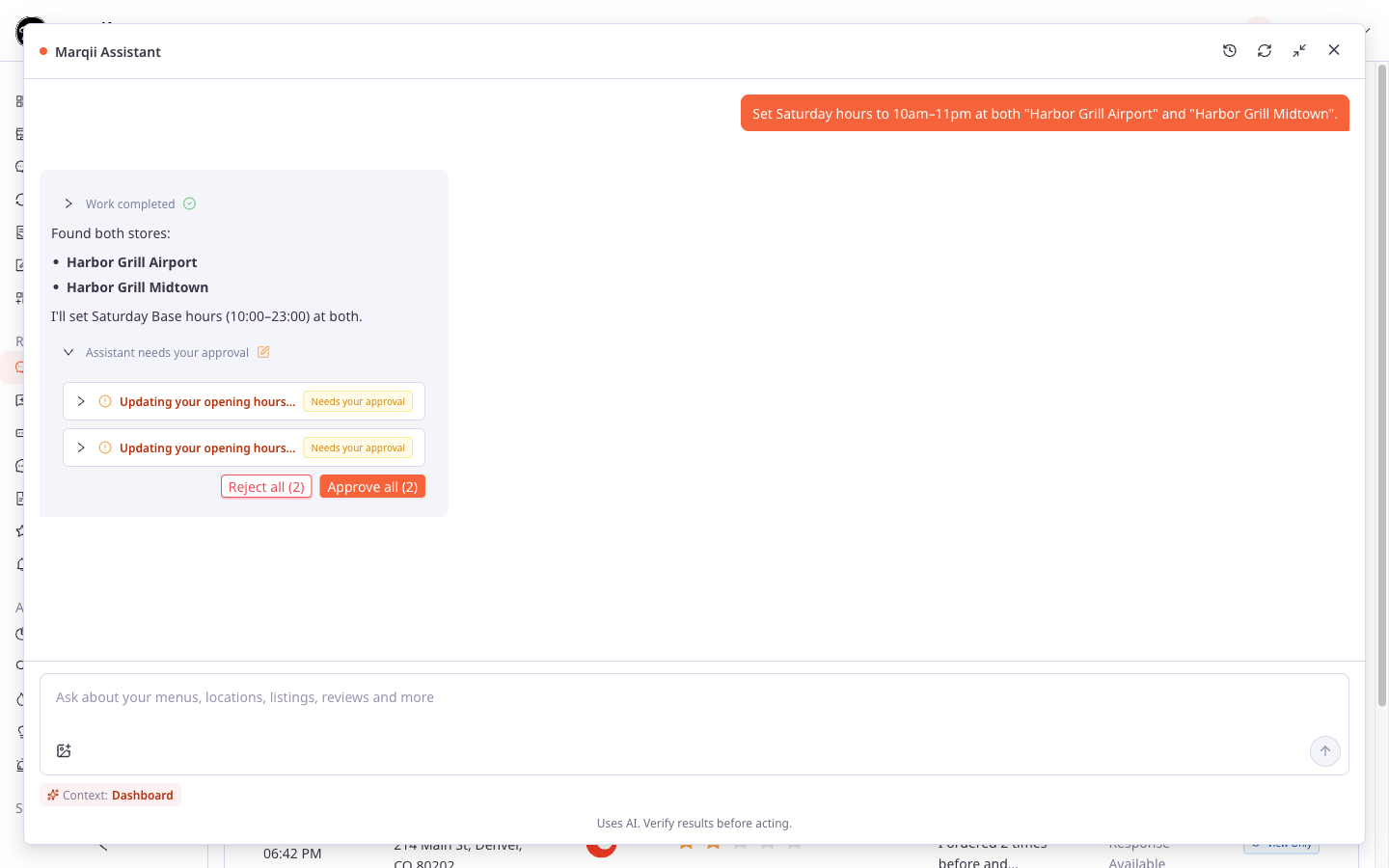
When one request needs several changes, such as updating hours at three locations, the assistant may show several approval cards together. You can answer each card one at a time, or use the buttons below them:
Approve all (N) approves every waiting change in the group.
Reject all (N) rejects every waiting change in the group.
N is the number of changes waiting for your answer.
When the Panel Is Closed
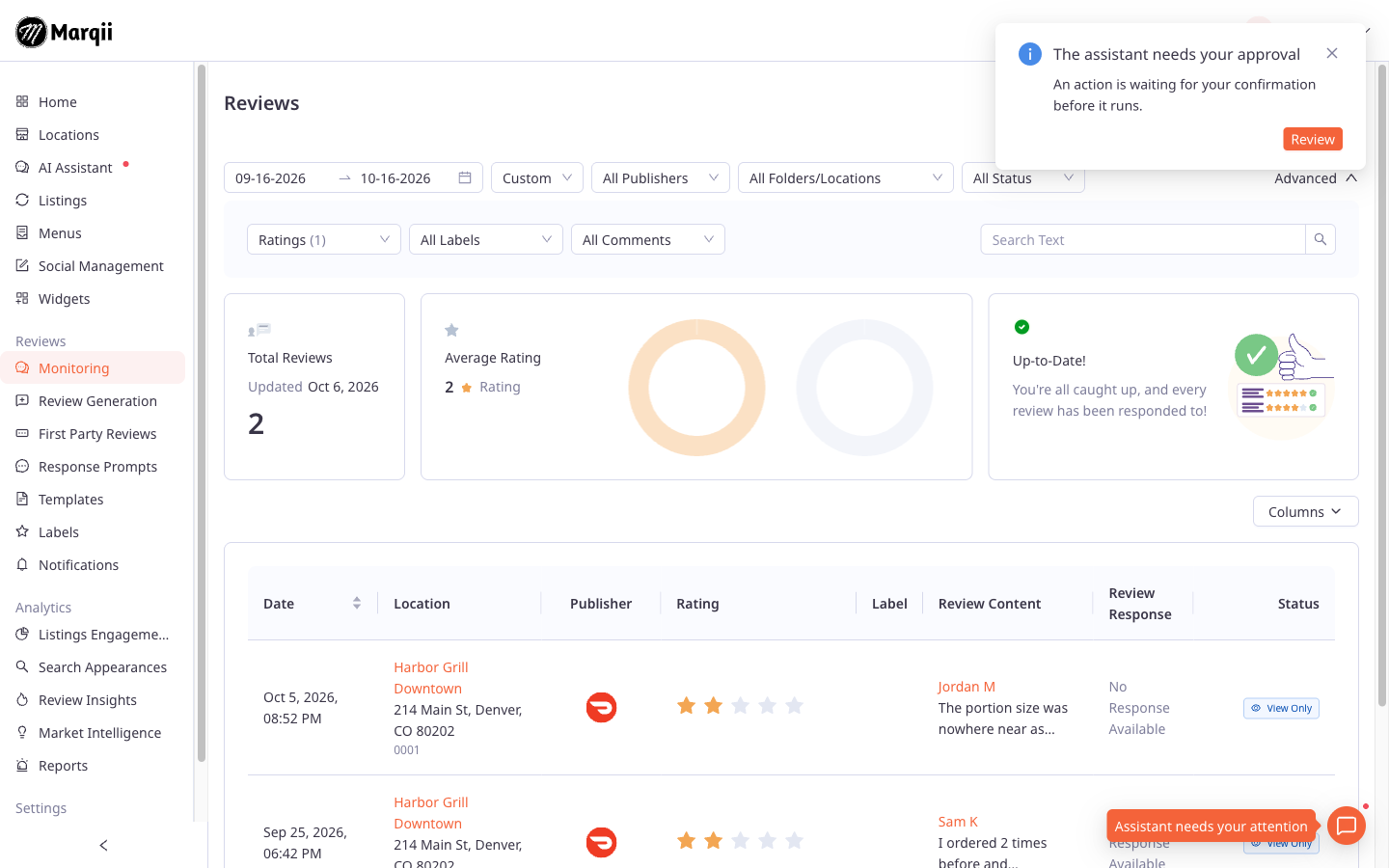
You can close the panel or keep working elsewhere in the dashboard while the assistant works. If it needs your approval while the panel is closed, the dashboard lets you know in several ways:
A notification appears with the title The assistant needs your approval and the message "An action is waiting for your confirmation before it runs." Click Review to open the panel at the approval card.
The browser tab title starts with (1).
The floating assistant button in the bottom-right corner shows a red dot and pulses. Its tooltip reads Assistant needs your attention.
The AI Assistant item in the left menu shows a dot labeled Approval required.
Approvals Expire After 10 Minutes
An approval request is valid for 10 minutes. If you click Approve after that, nothing changes and you'll see:
"This approval expired. Ask for the action again."
Ask the assistant to make the change again, and you'll get a fresh approval card.
If you have the dashboard open in more than one browser tab and already answered the approval in another tab, you'll see "This approval was already answered elsewhere. Ask for the action again." Each approval can only be used once.
Sending a New Message Cancels a Waiting Approval
You can keep typing while an approval card is waiting. If you send a new message instead of answering the card, the waiting change is cancelled and nothing is changed. The old card may not update to show this, so don't go back and approve it later — ask for the change again instead.
This is handy if you change your mind. For example, instead of rejecting a change and then explaining, you can just send "Actually, make it 10pm" and the assistant will prepare a new approval.
Note: If you typed follow-up messages while the assistant was still replying, they are not sent automatically while an approval is waiting. They're moved back into the message box so you can decide what to do. See Managing Your Conversations in Marqii Assistant for more on queued messages.
Stopping the Assistant After You Approve
You can click Stop response at any time to stop a reply. Stopping keeps the assistant from doing anything further, but it may not undo a change you already approved. If the change was already on its way when you clicked stop, it may still go through.
Important: If you stop the assistant right after approving a change, check whether the change was made before asking again. You can ask the assistant, for example "Did the Saturday hours change at Uptown go through?", or open the page and look.
How to Confirm a Change Worked
After a change succeeds:
The step's card shows Completed, and the assistant summarizes what it changed.
A banner appears above the message box: "I updated your data — the dashboard has been refreshed to show the changes." Click the X (Dismiss) to close it.
If you're on a page that shows the changed data, such as Locations, Listings, Reviews > Monitoring, or Menus, it refreshes on its own so you can see the change.
If a step shows Failed instead, the change didn't go through. The assistant explains what went wrong and suggests a next step.
Note: After changes to Social Management posts or Widgets, the page may not update on its own even though the banner appears. Refresh your browser to see the latest version.
Tip: Want to see the result for yourself? Ask "Take me to that page" after a change. See Navigating the Dashboard with Marqii Assistant.
Changes That Can't Be Undone
Some changes are permanent or go live right away, so take extra care before approving them:
Publishing a social post. Once published, a post can't be unpublished from the assistant.
Stopping a recurring social post. This is permanent. Posts already published from earlier cycles stay live.
Updating or deleting a website widget. Changes appear on your public website within minutes.
Deleting menus, sections, items, modifiers, or choices. Restoring deleted menu content requires help from Marqii support.
Related Articles
Can't find what you're looking for? Email us at support@marqii.com or text us at (512) 967-3739.