Attaching Images in Marqii Assistant
Last updated: October 19, 2026
You can attach images to your messages in Marqii Assistant so it can look at them with you. Snap a photo of a printed menu and ask it to compare prices with your Marqii menu, or share a screenshot and ask what it shows. The assistant accepts PNG, JPEG, GIF, and WebP images, up to 10 per message. Images you attach are for the assistant to look at. They can't be used as the photo on a social post or uploaded as a logo, location photo, or menu image.
How to Attach Images
You can add images in three ways:
Attach button: Click the image icon (Attach images) next to the message box and choose one or more files.
Paste: Copy an image or screenshot, click in the message box, and paste.
Drag and drop: Drag image files from your computer onto the message box.
Then:
Wait for each thumbnail above the message box to finish Uploading. The send button stays disabled until all images are ready.
Type your question or request. You can also send images without any text.
Press Enter or click Send.
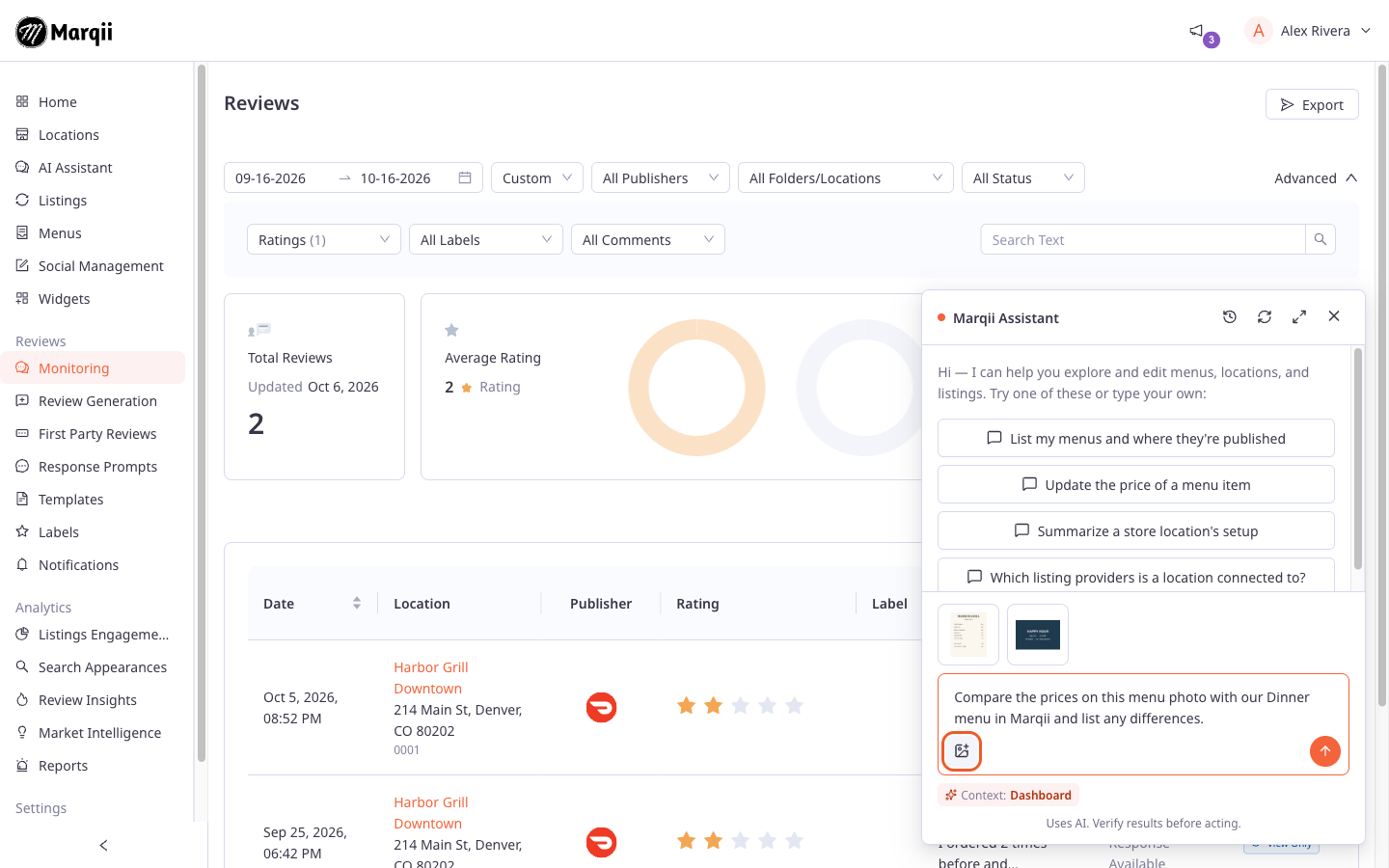
To remove an image before sending, click the X (Remove image) on its thumbnail.
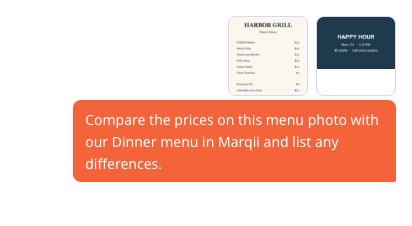
After you send, your images appear as thumbnails above your message. Click a thumbnail to see a larger preview.
Tip: Paste and drag and drop work best on a computer. On a phone or tablet, use the Attach images button.
What Images Are Good For
The assistant can read text in images and describe what it sees. Some ideas:
"Here's a photo of our printed dinner menu. Which items have different prices from our Dinner menu in Marqii?"
"This is a screenshot of our Google listing. Does the phone number match what's on file for our Downtown location?"
"What does this error on my screen mean?"
"Here's our new happy hour flyer. Update the Happy Hour hours at our Uptown location to match."
"Write a short Facebook post announcing the special in this photo."
If you ask it to change something based on an image, such as updating hours or prices, it still asks for your approval before changing anything. See Reviewing and Approving Changes in Marqii Assistant.
Tip: Check numbers and prices the assistant reads from a photo before approving a change. Blurry, angled, or low-light photos are harder to read accurately.
What Images Can't Be Used For
Images you attach in the chat are only for the assistant to look at. It can't:
Use an attached image as the photo or media on a social post. If you ask, it will ask you for a link to an image that's publicly available online instead. You can also add the image yourself in Social Management.
Upload an attached image as a logo, location photo, or menu item image. Add those in the dashboard instead.
Supported Files and Limits
Limit | Details |
|---|---|
File types | PNG, JPEG, GIF, and WebP |
Not supported | HEIC (the default format for many iPhone photos), SVG, PDF, and other documents |
Images per message | Up to 10 |
Size per image | Up to 3.75 MB, after automatic shrinking |
GIF dimensions | Up to 8000 pixels on the longest side (other images are resized automatically) |
Total per message | Up to 22.5 MB for all images on one message |
PNG, JPEG, and WebP images are automatically resized to at most 2000 pixels on the longest side before upload, so most phone photos and screenshots fit well within these limits. GIFs are kept as they are so any animation is preserved, which means a large GIF may be too big to attach.
Tip: If you want the assistant to read small text in a very large screenshot, crop it to the part you need before attaching it.
Note: If your iPhone saves photos as HEIC, convert the photo to JPEG before attaching it, or change your camera format to Most Compatible in your iPhone's camera settings.
Messages You Might See
Message | What to do |
|---|---|
"{file}: attach a PNG, JPEG, GIF or WebP image." | The file isn't a supported image type. Save it as one of these formats and try again. |
"{file}: HEIC images aren't supported. Convert to JPEG and try again." | Convert the photo to JPEG and attach it again. |
"{file} couldn't be read as an image." | The file may be damaged. Try exporting or taking the screenshot again. |
"{file} is larger than 8000 pixels on a side." | This applies to GIFs. Resize the GIF, or save it as a PNG or JPEG, and try again. |
"{file} is larger than 3.75 MB, even after shrinking." | Use a smaller image, or crop it to the part you need. |
"You can attach up to 10 images per message." | Send the rest in a follow-up message. |
"{file} didn't fit: images on one message can total at most 22.5 MB." | Send some of the images in a separate message. |
"Upload failed. Remove the image and try again." | Click the X on the thumbnail, then attach the image again. |
"Some images didn't upload. Send again to retry, or remove them." | Click Send again, or remove the images that didn't upload. |
"Image attachments aren't available right now." | Image attachments are temporarily unavailable. Describe what you need in text, or try again later. |
A message starting with "Attachment", such as "Attachment {file} was not found. Upload it again." | An image couldn't be used when you sent the message. Your text and images go back into the message box. Remove that image, attach it again, and send. |
The Assistant Only Sees Recent Images
The assistant looks at images from the last two messages you sent. Images from earlier in the conversation still appear in your chat history, but the assistant can no longer see them. If you want it to look at an earlier image again, attach it again.
Tip: Ask everything you need about an image right after you attach it, or re-attach it when you come back to it later.
Other Things to Know
You can't queue a message with images. While the assistant is still replying, you can type and queue text messages, but a message with images stays in the message box until the reply finishes. Then send it.
Image-only first messages: If you start a new conversation by sending only an image, the image's file name becomes the conversation's name. You can rename it at any time. See Managing Your Conversations in Marqii Assistant.
How long images are kept: Attached images are kept for one year from when you attach them. When an image expires, its thumbnail in your history shows No longer available. Deleting a conversation also deletes its images.
If an image in your history shows Couldn't load, click Retry.
Related Articles
Can't find what you're looking for? Email us at support@marqii.com or text us at (512) 967-3739.