Navigating the Dashboard with Marqii Assistant
Last updated: October 19, 2026
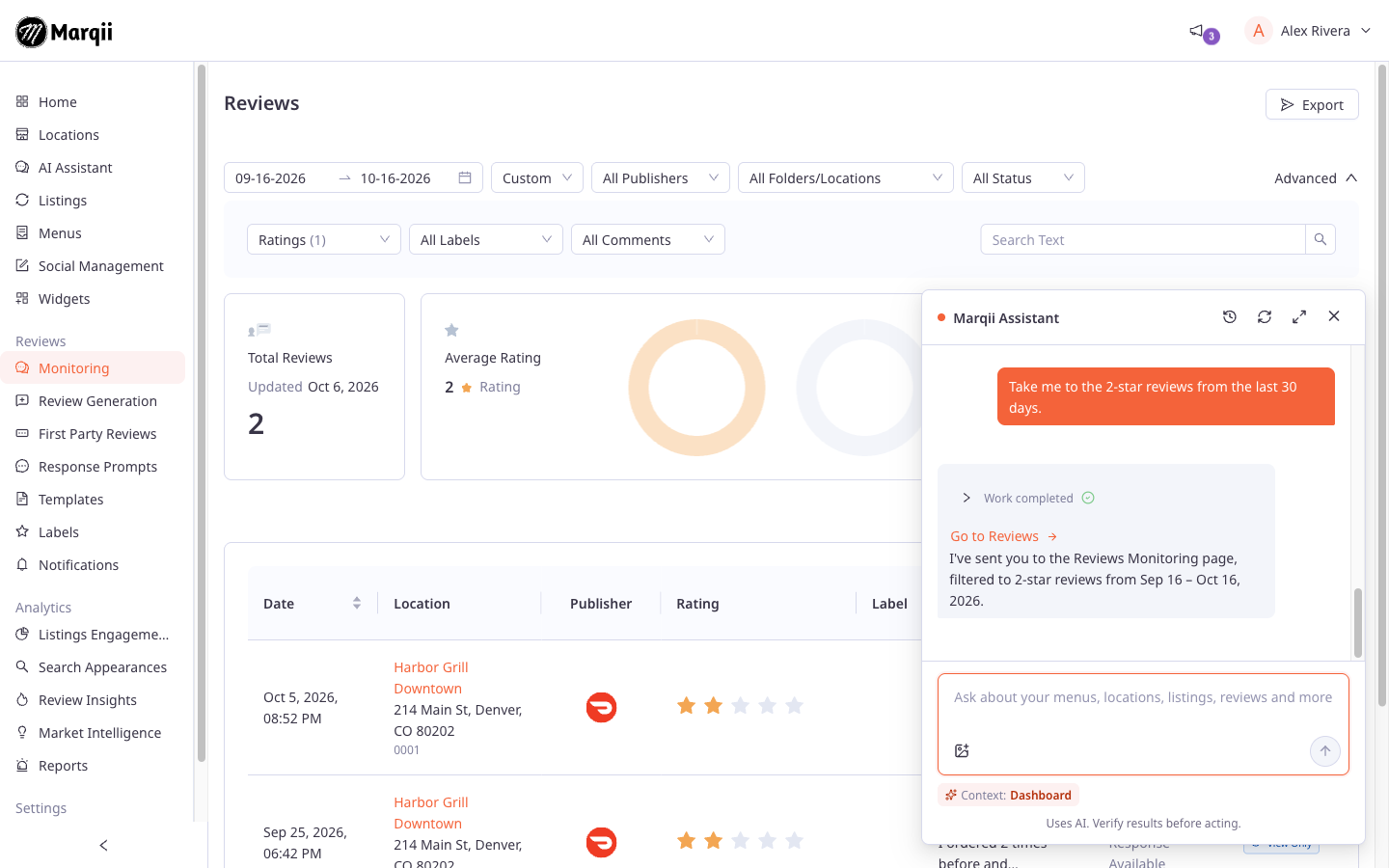
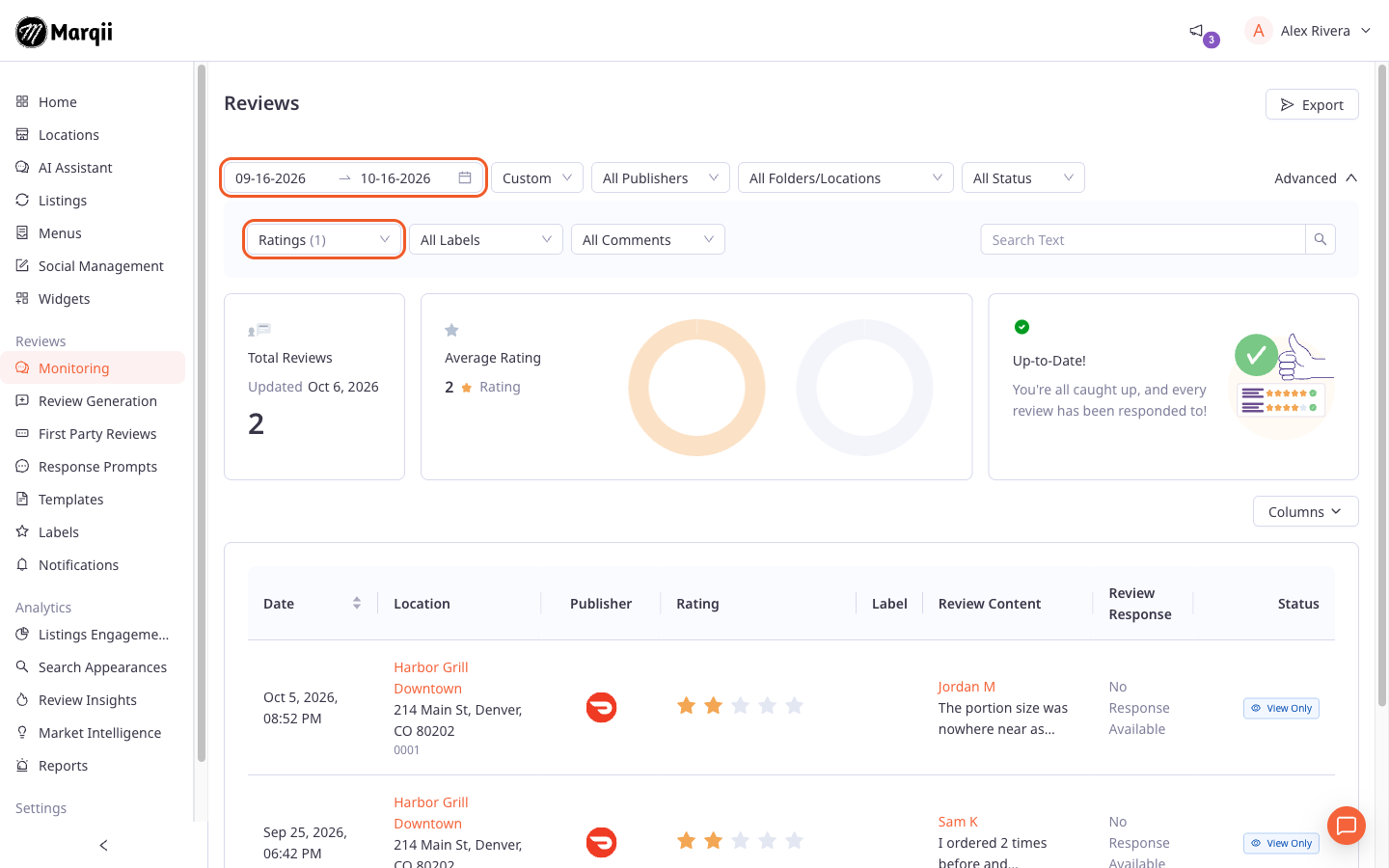
Marqii Assistant can take you straight to the page you need. Ask it to "take me to" or "open" a page, or to show you a filtered list, and it opens that page in the dashboard, often with your filters already set. For example, ask for last week's 1-star reviews and it opens Reviews > Monitoring with the date and rating filters applied. Opening a page doesn't change any of your data, so it never needs your approval.
How to Ask the Assistant to Take You Somewhere
Open Marqii Assistant from the floating button in the bottom-right corner (Ask the Marqii Assistant) or by selecting AI Assistant in the left menu.
Type where you want to go, for example:
"Take me to the Brunch menu."
"Open the Listings page."
"Show me all unreplied 1-star Google reviews from last week."
The dashboard opens the page. The assistant usually replies with "I've sent you to…" and leaves a Go to {page} link in the chat, such as Go to Reviews.
Keep chatting. The chat panel stays open on the new page, so you can ask follow-up questions about what you're looking at.
Note: If you're on the full-page AI Assistant view when the assistant opens a page, you'll leave that view and the conversation continues in the floating chat panel on the new page.
When the assistant offers a page instead of opening it
After the assistant creates or edits something for you, such as a menu item or a social post, it offers to show you the result rather than moving you automatically. Reply "yes" or "take me there" and it opens the page. It also won't reopen the page you're already on unless it's changing that page's filters.
Filters That Carry Over
When you ask for a filtered view, the assistant sets the filters for you instead of explaining how to set them. Each page supports its own set of filters:
Page | Filters the assistant can set |
|---|---|
Locations | Locations, folders |
Listings | Publishers, locations, status (updated, updating, failed, disabled), or one specific listing |
Menus | Locations, visible or hidden, menu source (such as Toast or Square) |
Reviews > Monitoring | Date range, locations, folders, publishers, star ratings, reply status (replied, awaiting reply, draft ready), labels, with or without a comment, a search phrase, or one specific review |
Review Insights | Date range (start and end), locations, folders, publishers, labels |
Social Management > Published | Recurring or one-time posts, or one specific post |
Social Management > Scheduled | Locations, pages, recurring or one-time posts, or one specific post |
Widgets | Widget type (Hours, Menus, FAQ, Reviews), widget name, locations |
Example prompts:
"Show me 1- and 2-star reviews at our Downtown location from the last 7 days that are awaiting a reply."
"Open Listings filtered to Yelp listings that failed to update."
"Take me to Review Insights for our Uptown and Airport locations for September."
"Show me our hidden menus at the Lakeside location."
"Open the Widgets page filtered to FAQ widgets."
"Show me our recurring scheduled posts."
Note: On Reviews, Review Insights and the Social Management pages, the assistant clears the filters you had set and applies the new ones. On Social Management, it can't filter by date, publisher or post status, and on Published it can't filter by location or page. Set those on the page itself.
The Go to Link in the Chat
Every time the assistant opens a page, it leaves a Go to {page} link in its reply. Use it to return to that page later, even when you reopen the conversation from your history. Selecting the link opens the same page with the same filters.
The link names don't always match the left menu exactly:
Link in the chat | Where to find it |
|---|---|
Go to Reviews | Reviews > Monitoring |
Go to Review Insights | Analytics > Review Insights |
Go to Published Posts | Social Management > Published |
Go to Scheduled Posts | Social Management > Scheduled |
Go to Post Editor | Social Management, editing one post |
If You're Editing a Page
If you're on a page for creating or editing something, such as a widget, a social post, a brand kit, a review form, template, label, response prompt or notification, a new menu, an email report, or a Toast connection, the assistant won't move you away, so you never lose unsaved work. Instead, you'll see this message:
"You're editing this page, so the assistant didn't leave it. Use the link in the chat when you're ready."
Save or finish your edits, then select the Go to {page} link in the chat.
[Screenshot to upload: screenshot-navigating-the-dashboard-with-marqii-assistant-3.png] Message shown when Marqii Assistant doesn't leave a page you're editing
Pages the Assistant Can Open
Page | Where to find it | Example prompt |
|---|---|---|
Home | Home | "Take me home." |
Locations | Locations | "Show me the locations in our Texas folder." |
Location Details | Locations, one location | "Open the Downtown location." |
Listings | Listings | "Show me our Google listings." |
Menus | Menus > Menus | "Take me to the menus list." |
Menu Details | Menus, one menu | "Open the Brunch menu." |
Section Details | Menus > Sections, one section | "Open the Desserts section." |
Modifier Details | Menus > Modifiers, one modifier group | "Open the Burger Toppings modifier group." |
Choice Details | Menus > Choices, one choice | "Open the Extra Cheese choice." |
Reviews | Reviews > Monitoring | "Show me reviews from last weekend." |
Review Insights | Analytics > Review Insights | "Open Review Insights for last month." |
Published Posts | Social Management > Published | "Show me our published posts." |
Scheduled Posts | Social Management > Scheduled | "Show me what's scheduled." |
Post Editor | Social Management, editing one post | "Open the fall menu post so I can edit it." |
Widgets | Widgets | "Show me our website widgets." |
Hours Widget, Menus Widget, FAQ Widget, Reviews Widget | Widgets, editing one widget | "Open our FAQ widget." |
Pages it can't open yet
The assistant can't open other pages, including the Sections, Items, Modifiers and Choices lists in Menus, individual menu items, Analytics > Listings Engagement, Search Appearances, Market Intelligence and Reports, the other Reviews pages (such as Review Generation, Templates and Labels), the Drafts tab in Social Management, and Settings. Open these from the left menu. The assistant can still answer questions about much of this information in the chat, such as your listing views and clicks or your top search terms.
If You See a Page Not Found Message
The assistant can open a page even if your role or plan doesn't include it. If that happens, you'll see Page Not Found. Use the left menu to go back, or ask your account admin about access.
Tip: If you don't see a page like Menus, Listings, Social Management, Widgets or Reviews in your left menu, your plan or role may not include it, and the assistant can't open it for you either.
Related Articles
Can't find what you're looking for? Email us at support@marqii.com or text us at (512) 967-3739.