Integrating Square POS to Marqii
Last updated: August 6, 2026
Integrating Square POS with Marqii creates a seamless, automated link that ensures your digital listings always reflect your live menus. By establishing Square as your "single source of truth" for menu data, you eliminate the need for manual data entry across multiple platforms, reducing errors and saving your team valuable time.
Integrating Your Square POS to Marqii
Connect Your Account
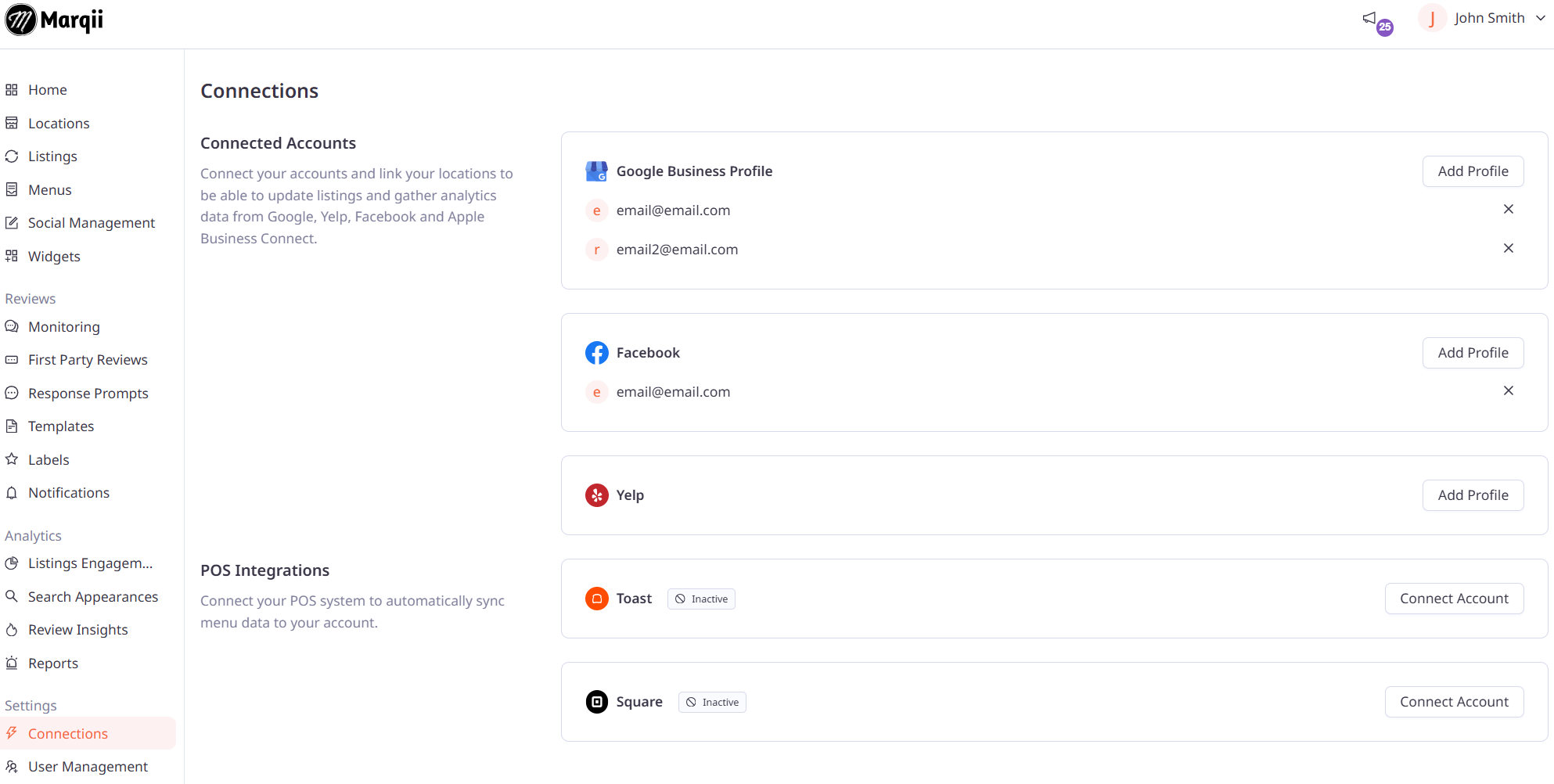
To begin the integration process, visit the Connections page and click "Connect Account" next to Square in the POS Integrations section.
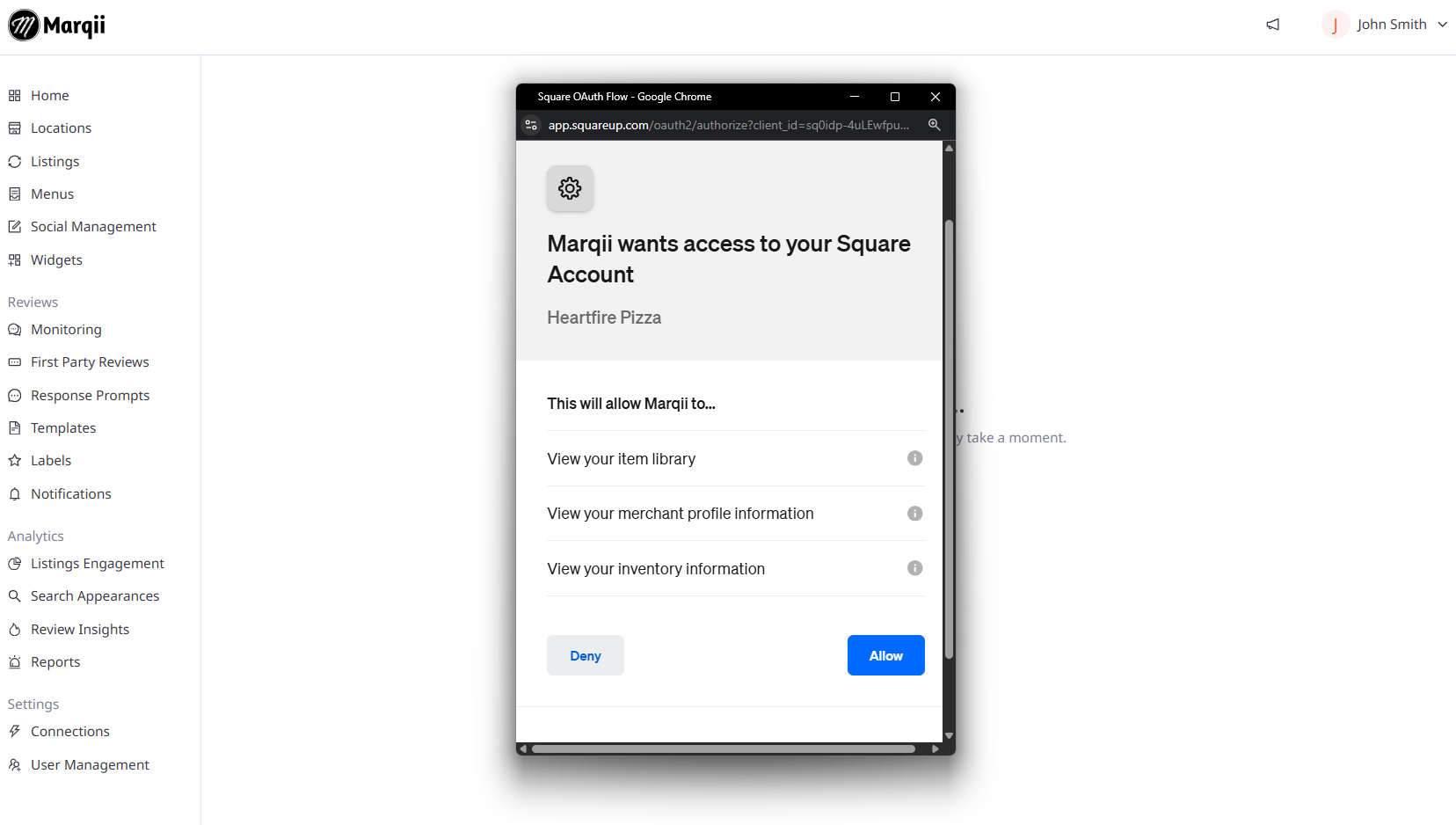
You'll be redirected to Square to log in and authorize the connection. Once you click Allow Access, you'll be returned to Marqii to continue the setup.
Match Your Locations
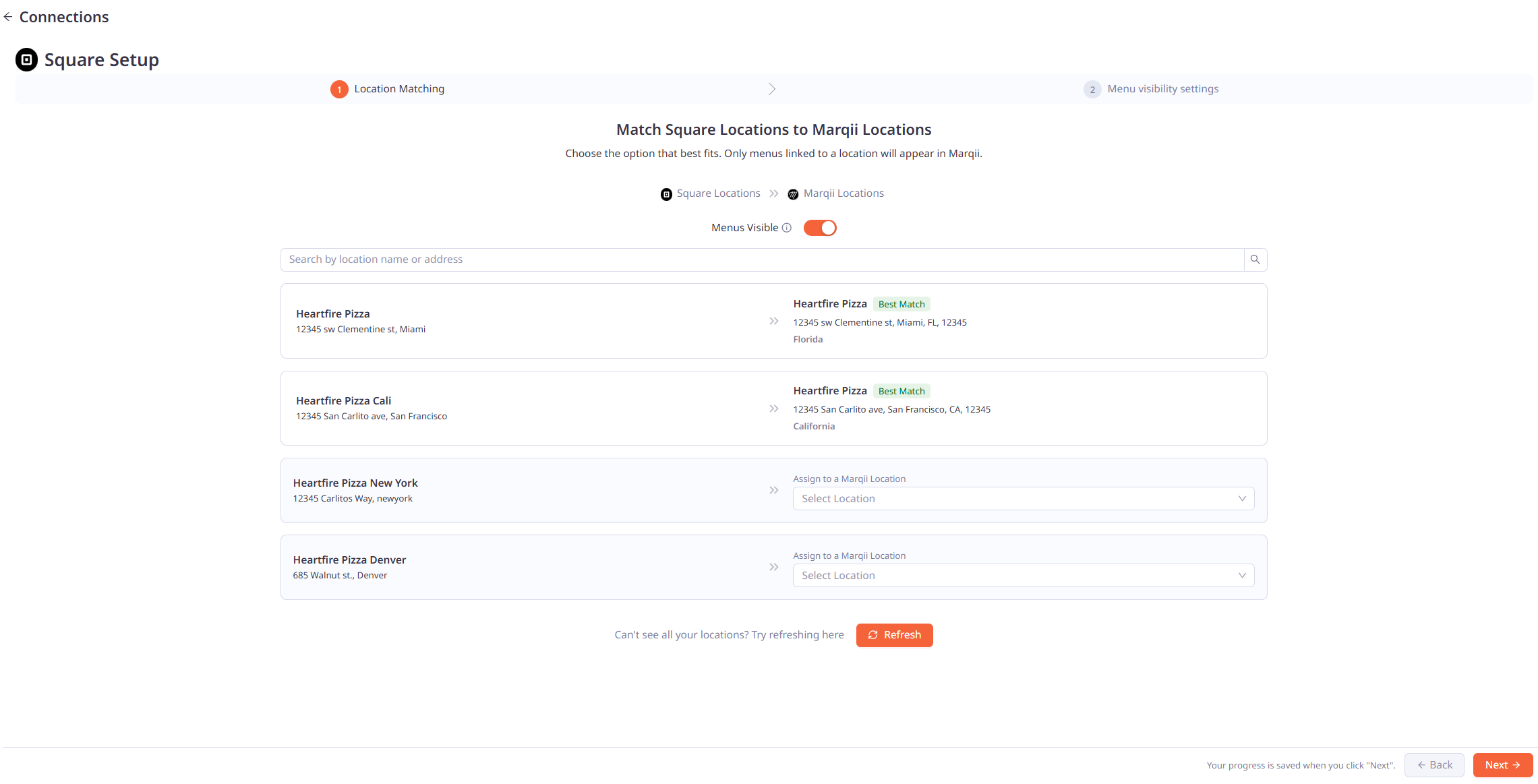
Once connected, you'll be able to match your Square locations to your Marqii locations. Mapping a Square location to a Marqii location will automatically assign that location's Square menu to Marqii.
Note: Marqii will try to automatically match locations with matching addresses. If you don't see one of your Square locations in the list, click "Can't see all your locations? Try refreshing" to refresh the location list.
If you do not wish to map a Square location to a Marqii location, you can select:
Leave Unassigned Import these Menus – the menu for this location will be pulled into Marqii and left unassigned. You can follow the steps here to assign it to a Marqii location afterward.
Leave Unassigned Ignore these Menus – the menu for this location will not be pulled into Marqii.
Once you've matched (or left unassigned) all your locations, click Next.
Menu Visibility Settings
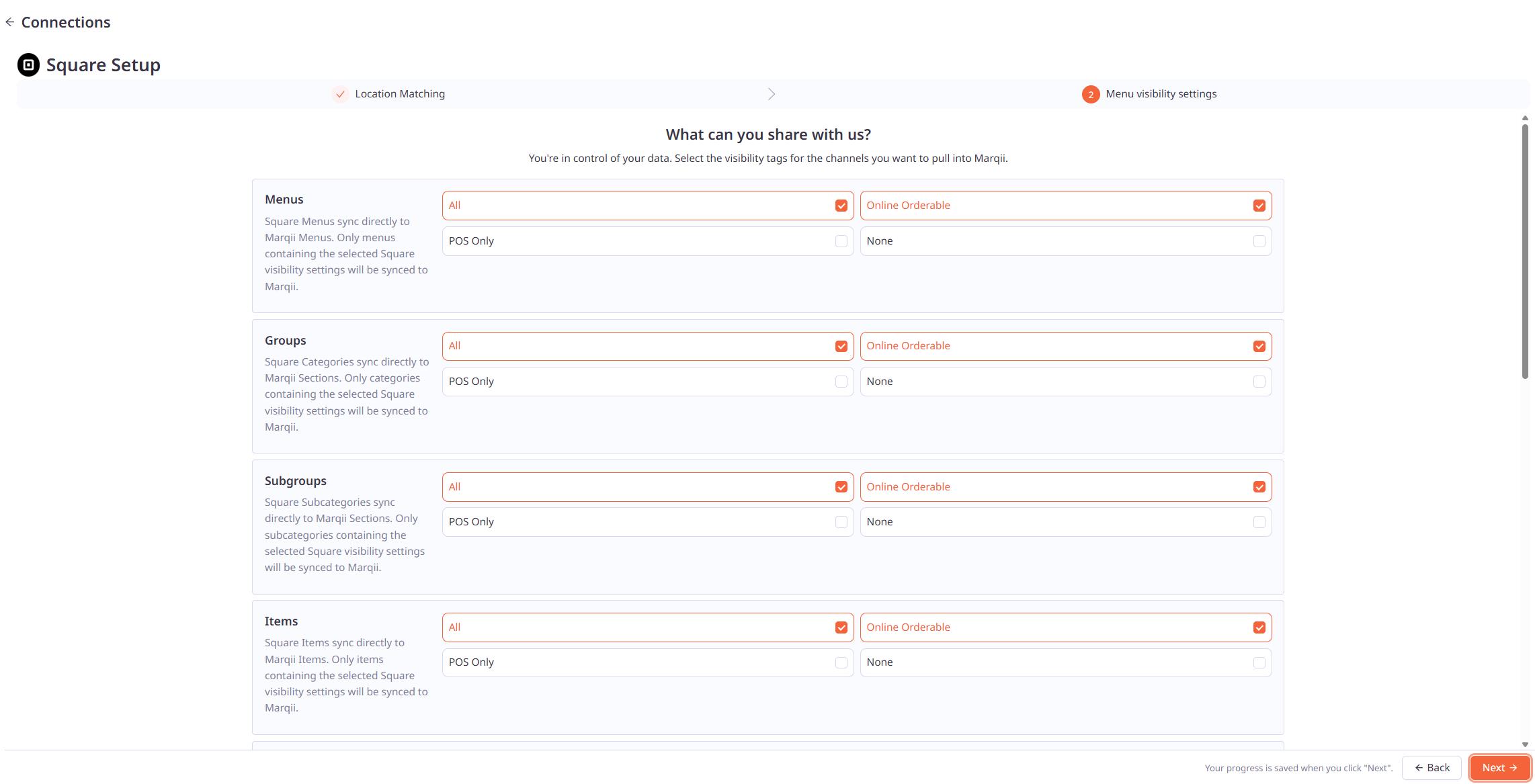
The Menu Visibility Settings screen lets you control exactly which Square data is pulled into Marqii, ensuring that only menus, groups, subgroups, items, and options intended for public-facing listings are synced.
Marqii pulls the visibility tags directly from your Square account. For each level below, check or uncheck the specific Square channels you want to sync:
All: Syncs items regardless of their Square visibility setting.
Online Orderable: Syncs items marked as available for Square Online Ordering.
POS Only: Syncs items only visible on your in-house point-of-sale.
None: Ensures this specific category, item, or option is never pulled into Marqii or displayed on digital listings.
These visibility tags apply across each of the following levels:
Menus – Square Menus sync directly to Marqii Menus.
Groups – Square Categories sync directly to Marqii Sections.
Subgroups – Square Subcategories sync directly to Marqii Sections.
Items – Square Items sync directly to Marqii Items.
Options – Square Modifiers sync directly to Marqii Choices.
Only menus, groups, subgroups, items, or options containing your selected visibility settings will sync to Marqii.
Privacy Settings
The final step gives you granular control over specific data points, so you can exclude internal-facing or sensitive details from your public listings.
Hide Details (Global Toggles)
Hide specific categories of information across your entire menu sync:
All Photos: Exclude all images associated with your Square menus in Marqii.
All Prices: Remove pricing information from your menus in Marqii.
All Modifiers: Prevent any item customizations or modifiers from syncing into Marqii.
All Descriptions: Hide the detailed text descriptions for all items and groups in Marqii.
Hide by Name (Targeted Exclusions)
If you have specific internal items (e.g., "Open Liquor," "Employee Meal," or "Misc Charge") that should never go public, exclude them by typing their exact Square name into the relevant field and pressing Enter. You can filter by:
Menus, Groups, or Subgroups: Exclude entire categories of items at once.
Items: Exclude specific dishes or beverages.
Choices/Modifiers: Exclude specific customization options.
Hide Descriptions
In some cases, you may want to show an item but hide its specific Square description (which might contain internal kitchen instructions). You can target description exclusions for:
Groups: Hides the summary text for a category.
Items: Hides the description for specific food/drink items.
Items in Groups: Specifically targets item descriptions within a certain group.
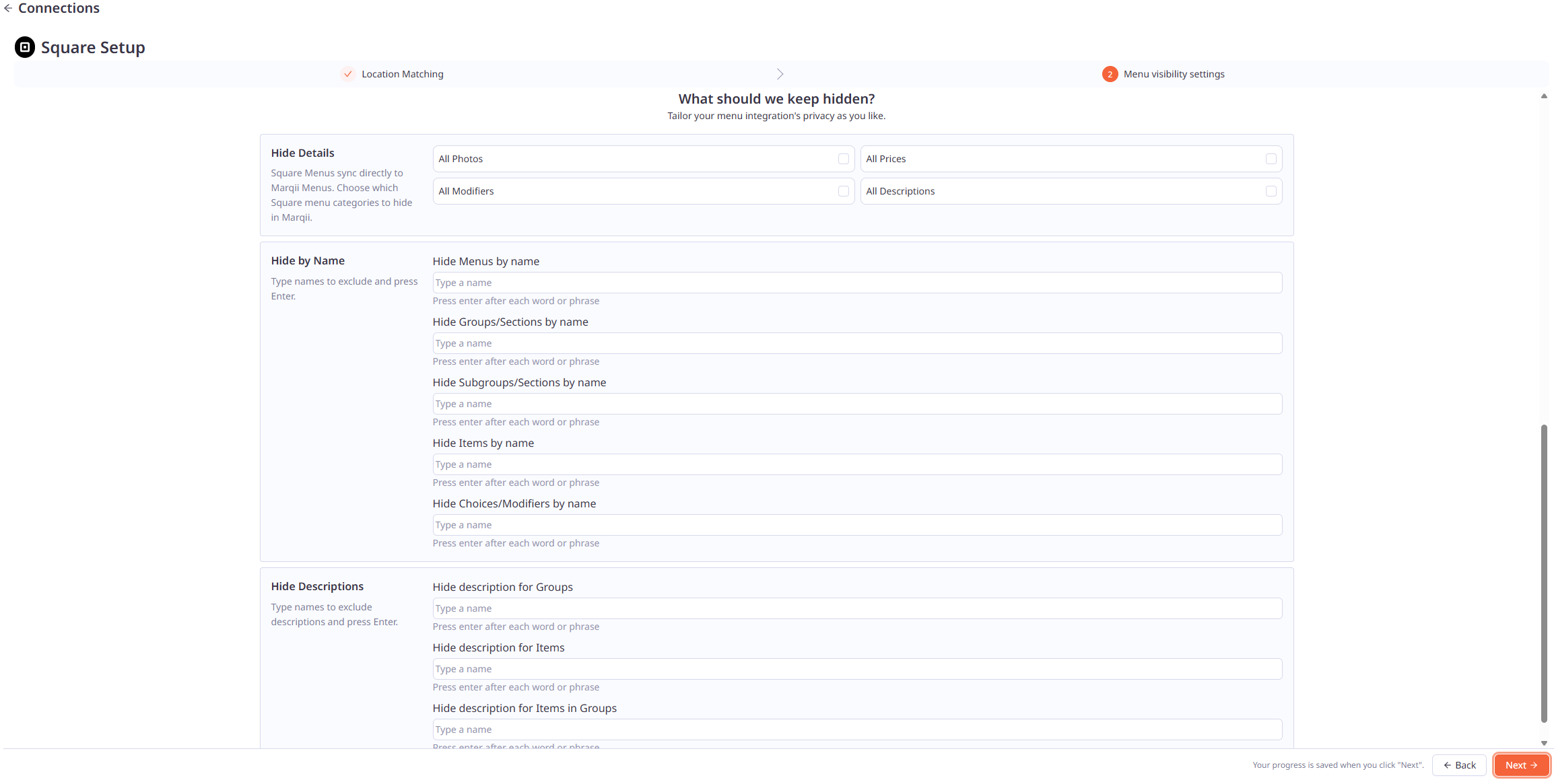
Once you've finalized your Privacy Settings, click Next to complete your Square to Marqii integration.
Revisiting Your Square Settings
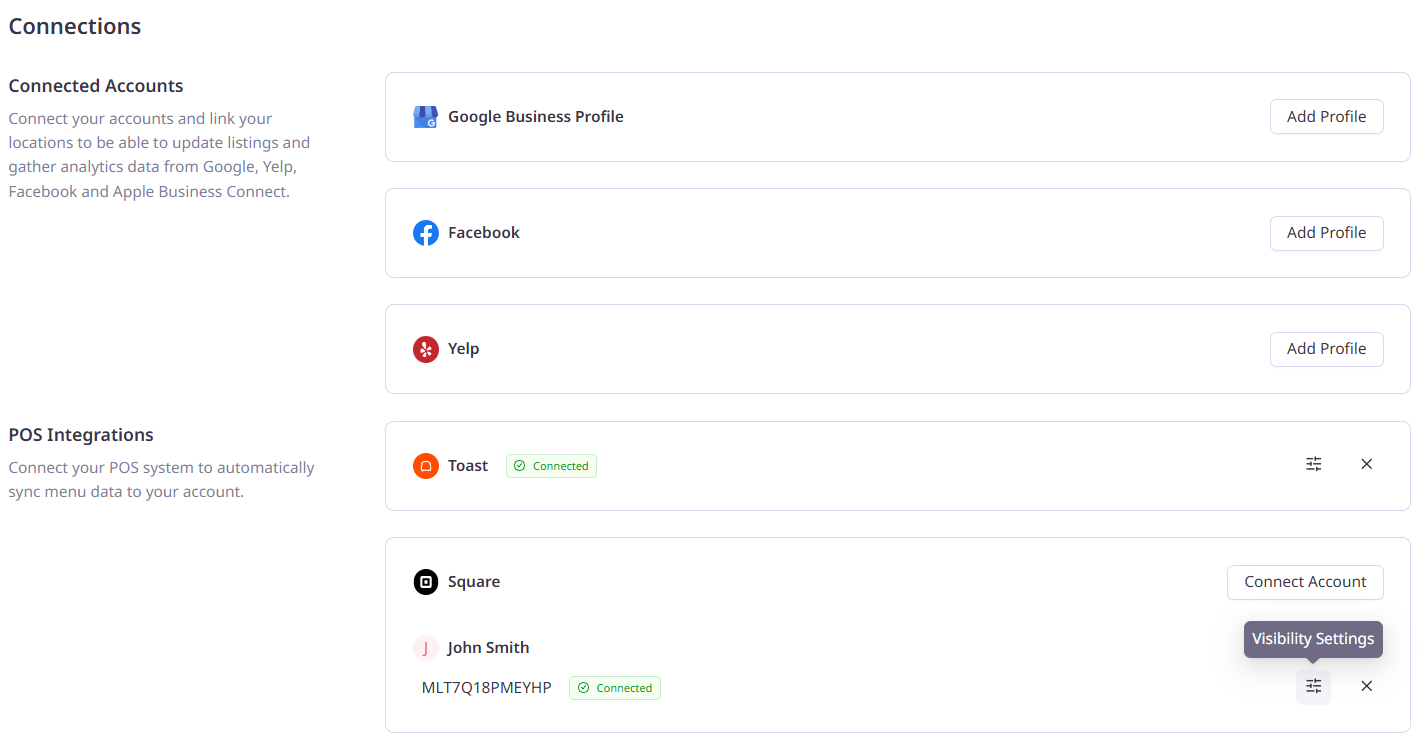
You can revisit your visibility and location mapping settings at any time by clicking the Settings button next to your Square integration on the Connections page.
Note on Data Synced
Square integrations sync menu data to Marqii. Hours are not synced as part of the Square integration.
Removing Your Square Integration
If you would like to remove your Square integration, you can do so by clicking the "X" in the Connections page.
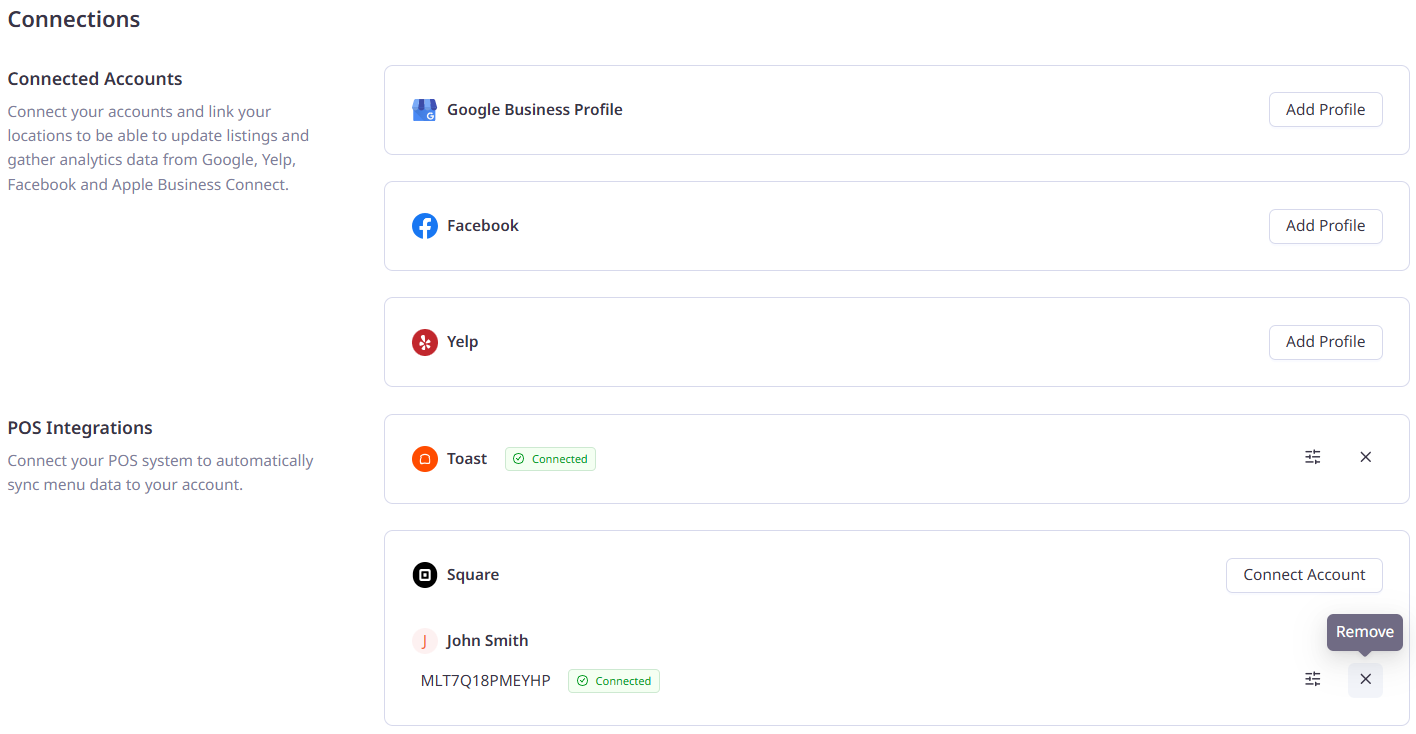
This will keep the current menus that were imported from Square in Marqii, however, these menus will no longer sync with future changes made in Square.
If you need any further assistance, feel free to contact support at support@marqii.com or text (512) 967-3739.