How To Link Apple Business Connect Account
Last updated: July 15, 2026
Linking Your Apple Business Connect Account to Marqii
This article will guide you through the process of linking your Apple Business Connect account to the Marqii platform. Connecting these accounts ensures your restaurant or hospitality locations stay updated across Apple Maps, Siri, and Spotlight search with minimal manual effort.
Why This Matters
Apple Business Connect is a critical touchpoint for guest discoverability. By linking it to Marqii, you can manage your location data—such as action links, photos, and special offers—directly from the Marqii dashboard. This automation saves you from managing individual Apple IDs for every location and ensures your digital storefront remains accurate and trustworthy for guests searching on iOS devices.
Step-by-Step Instructions
Follow these steps to authorize Marqii as your third-party partner within the Apple Business Connect portal.
Log into your account and click the Account Details icon in the bottom left corner of the navigation bar, and then click Account Settings.
Click Linked Accounts.
Click on the Link Account button for Apple.
In the modal that appears, log in to your Apple Business account.
Select the company from Apple Business that you’d like to connect to. Then click Connect.
The Linked Accounts page will refresh, and you can view the account you just linked.
Step 2: Assign Linked Account to Your Locations
You now need to assign your linked Apple account to your locations.
On the Linked Accounts page, select the location you’d like to assign the Apple Business account to by clicking one of these options:
All available locations…
Select folder…
Select locations…
After clicking one of the above options, choose the relevant locations.
Click Link this account.
Click Link Account to confirm that you’d like to assign this Apple Business account to the locations you’ve selected.
Note: Once you complete these steps in Apple, the connection may take a short period to sync. Ensure your location data in Marqii (Address, Phone Number, and Name) matches your Apple listings exactly to prevent duplicate profiles. Apple requires that all Location name exactly match their respective Brand names. However, there are some exceptions based on vertical or on a case-by-case basis.
Step 3: Add Apple Brand IDs to Locations
Once you have linked your Apple Business Account with Marqii, you must specify your Apple Brand ID fields in the Knowledge Graph for each entity that you wish to sync to Apple.
Retrieve Your Apple Brand ID
Your Apple Brand ID can be found within your Business Account. The Apple Brand ID is specific to each brand and country combination within the Company account. To find the Brand ID, you should:
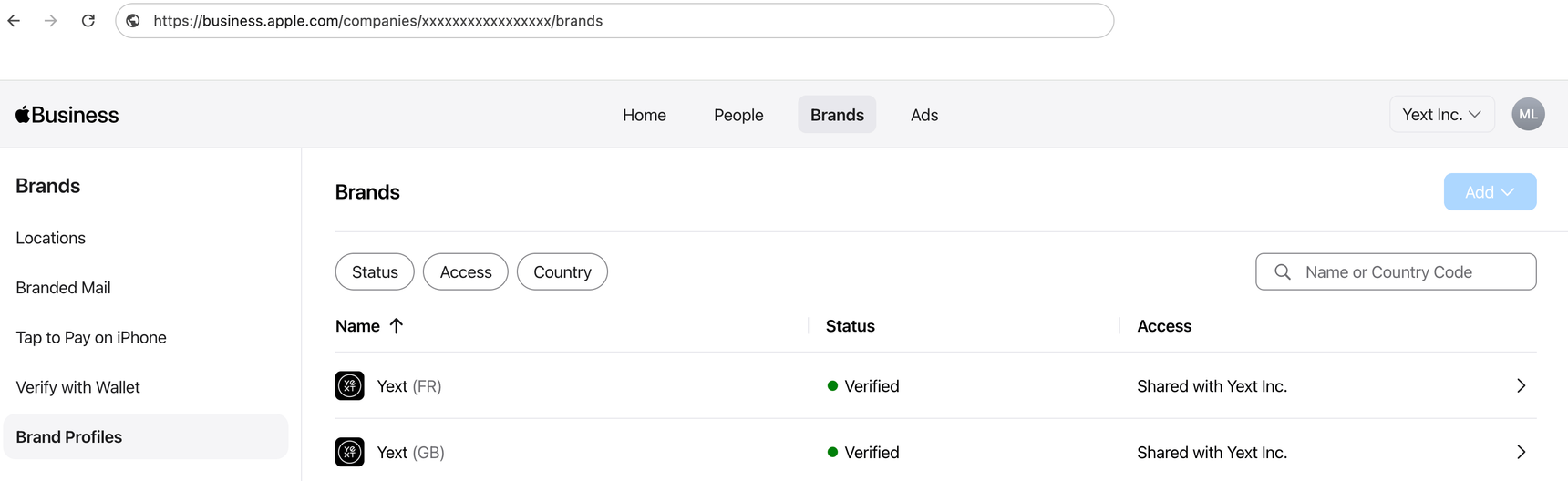
Navigate to the Brand page by selecting Brands in the nav. Then select Brand Profiles on the left.
Select the specific brand and country you wish to enable.
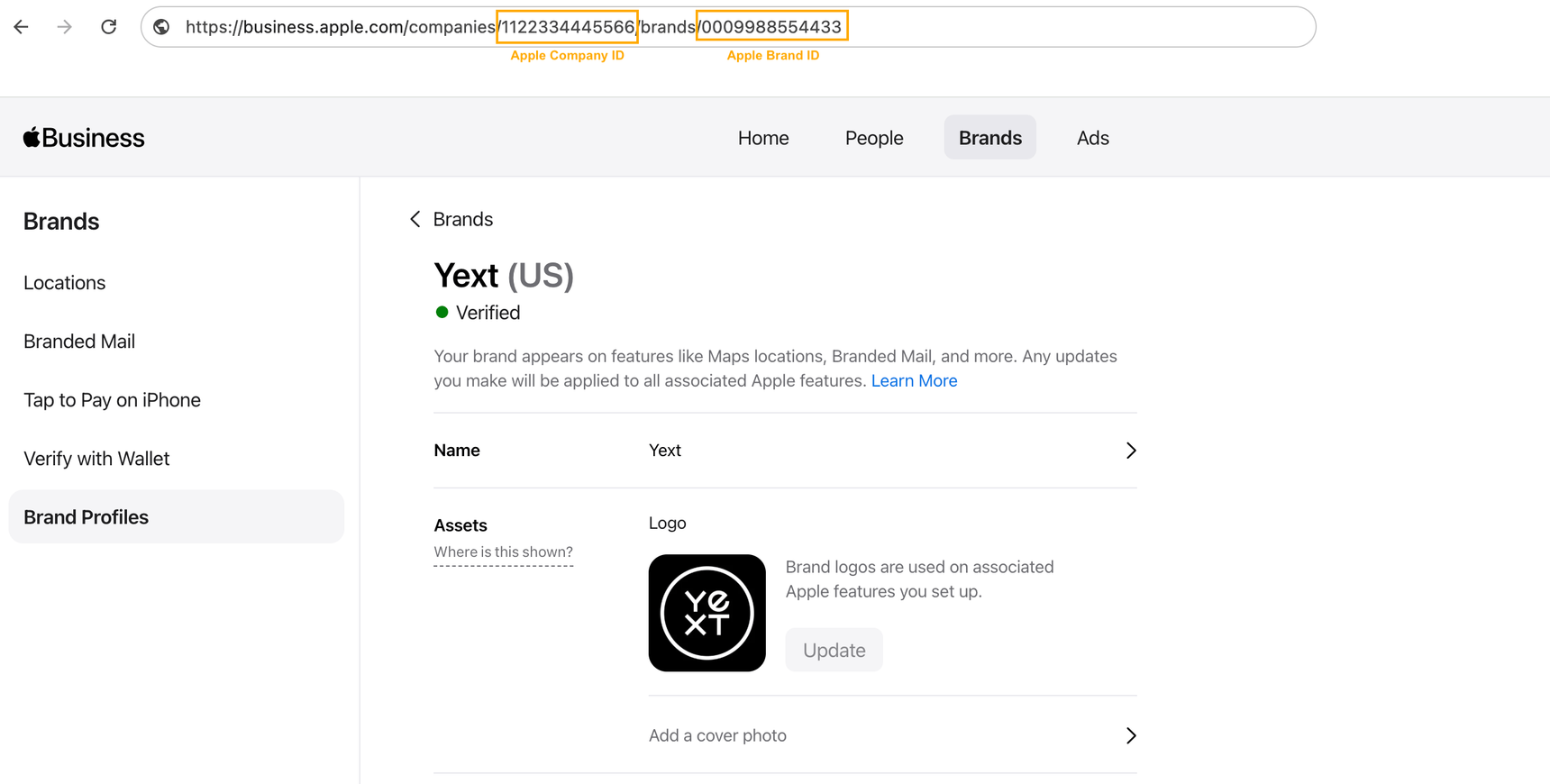
Once you have selected the brand, you can find its Brand ID in your browser URL.
The number following companies/ is your Apple Company ID, this will automatically - be populated in Marqii when you link your account. This is the same across all your brands.
The number following brand/ is your Apple Brand ID. This is what you need to add to your corresponding locations in Marqii.
If you are enabling multiple brand folders, repeat this process for each brand folder.
Add Relevant Brand IDs to Entities in the Knowledge Graph
Once you have the relevant Brand ID(s) from Apple, you need to add them to the corresponding location entities in Marqii. You can do this via spreadsheet upload or by manually editing your locations in the Knowledge Graph.
From your Marqii account, click Knowledge Graph in the navigation bar and click Entities.
Edit any entities you want to link.
To edit a single entity, select the entity from the Entities screen to start editing.
You can also bulk edit entities via file upload, which will be helpful if you have a lot of Brand IDs.
Your Company ID in the Apple Company ID field should already be filled out.
For each brand folder in your Apple Business, add the ID to the Apple Brand ID field within the Knowledge Graph.
Once this is done, linking your Apple Business account is complete account-wide and you can take advantage of all Apple-related features through Marqii
What Happens Next
After linking the accounts, Marqii will begin syncing your data to Apple Maps. You can now update your holiday hours, upload new food photography, and toggle "Showcases" (Apple's version of social posts/announcements) directly within the Marqii platform.
Best Practices for Apple Discoverability
High-Quality Visuals: Apple Maps is a highly visual platform. Ensure you have high-resolution photos of your interior and exterior uploaded in Marqii to improve guest conversion.
Keep Hours Accurate: Inaccurate hours are a leading cause of negative guest experiences. Update your holiday or seasonal hours in Marqii once, and they will automatically push to Apple.
Utilize Showcases: Use Marqii to publish limited-time offers or event announcements to your Apple listing to stand out from nearby competitors.
Need Assistance?
If you encounter any issues while navigating the Apple Business Connect portal or if your locations are not appearing as expected, our team is here to help.
Marqii Support is always happy to assist with your Apple integration to ensure your locations remain visible and accurate.