How to Link a Google Account
Last updated: July 14, 2026
Linking Google to the Marqii Dashboard
Log into Marqii here.
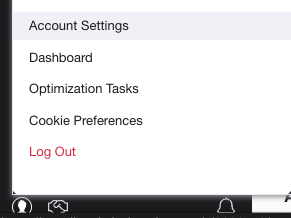
In the left-side navigation menu click on the person icon in the bottom left-corner labeled "Account Details"

Select "Account Settings"
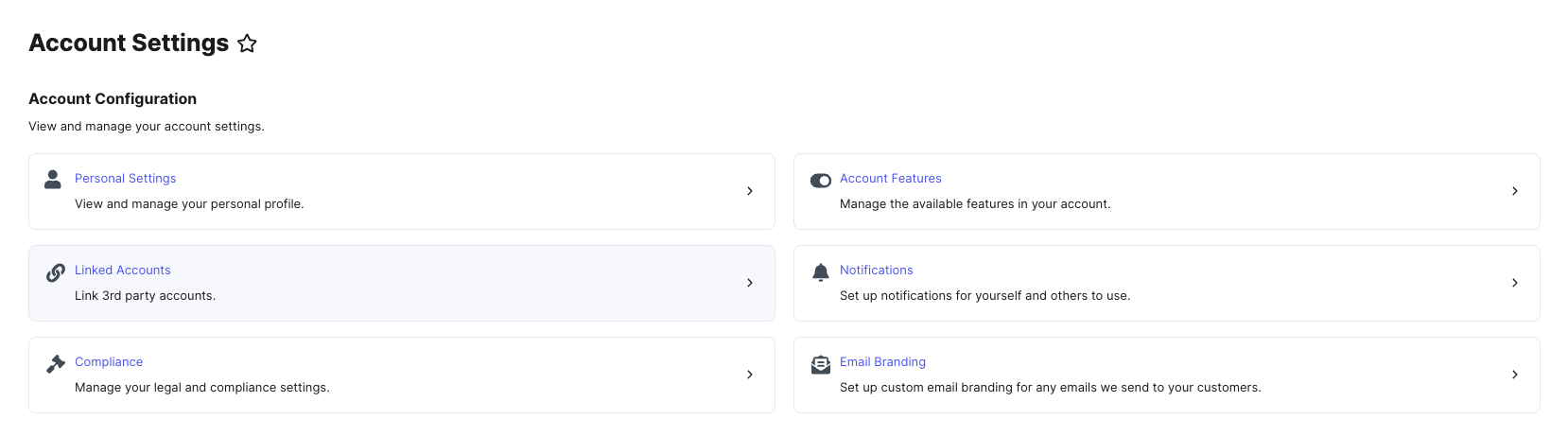
Under "Account Configuration" select the "Linked Accounts" option.
Under "Listing Accounts" click on "Link Account" next to Google and sign into your Google Business Profile account.
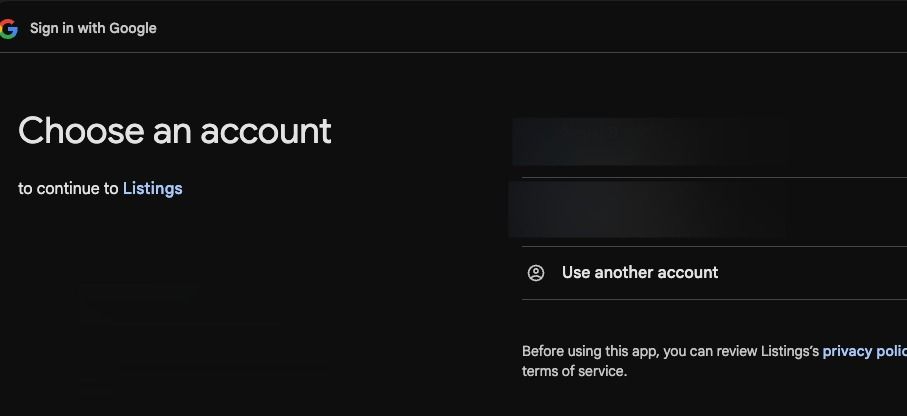
You can either select from Google accounts that are already logged in, or click “Use Another Account” to sign in with the account that manages your Google Business Profile.
Note: Marqii can only connect to a Google Business Profile if the account used is listed as a manager or owner of the page.
Click "Continue" to review the Privacy Policy, then accept the permission request.
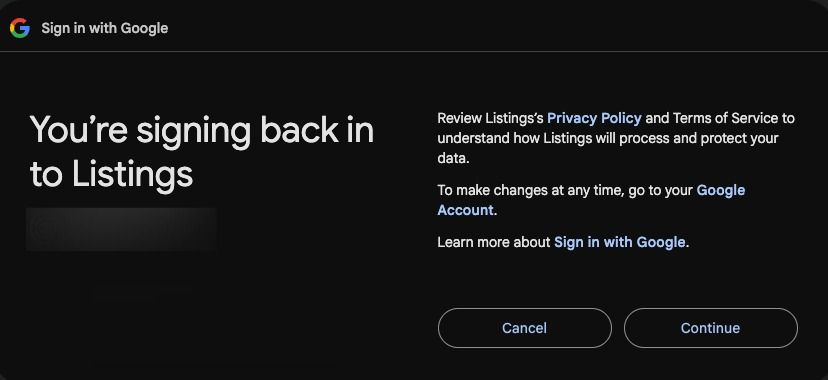
Click "Continue" to allow access to your Google Business Profile account.
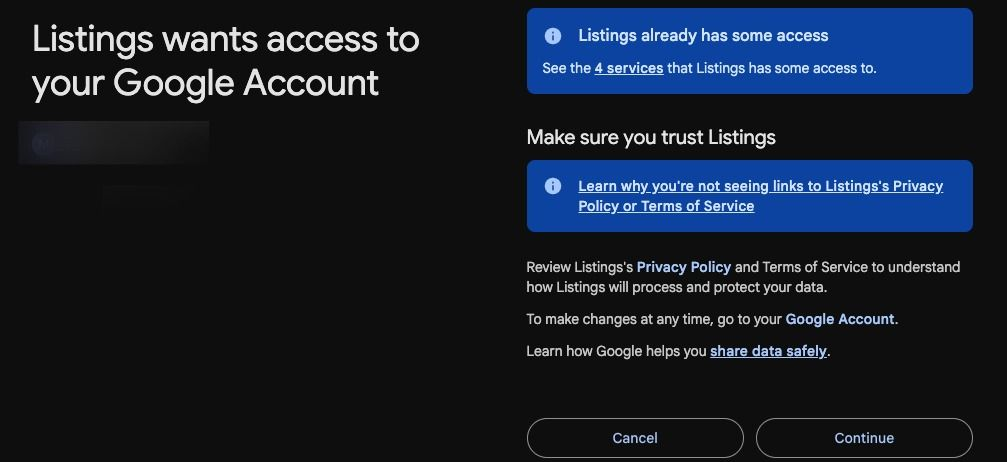
If you have multiple locations, select "All Available Locations" when prompted.
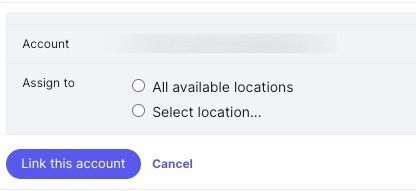
Then click "Link This Account"
Once the account is linked, finish the set up flow for the specific entity.
Select "Listings" in the navigation bar and click on "Publishers"
Select "Google Business Profile" in the list of publishers and click on "Set up" to the right of the Google Business Profile listing for the desired location.
Select the Page for the intended location, or select the option to create a new page. Then click "Continue"
A dialog box appears, be sure to read the Content Change warning before proceeding.
Note: It is imperative that the business name, address, phone number, and category in Marqii and Google Business Profile match. If this information is inconsistent, update it accordingly.
Click "Continue" once you verify the content is the same.
Add a profile photo and cover photo.
Click "Complete"
If you need any further assistance, feel free to contact support at support@marqii.com or text (512) 967-3739.