Integrating Toast POS to Marqii
Last updated: July 14, 2026
Contents
Integrating Toast POS with Marqii creates a seamless, automated link that ensures your digital listings always reflect your live menus. By establishing Toast as your 'single source of truth,' you eliminate the need for manual data entry across multiple platforms, reducing errors and saving your team valuable time.
Integrating Your Toast POS to Marqii
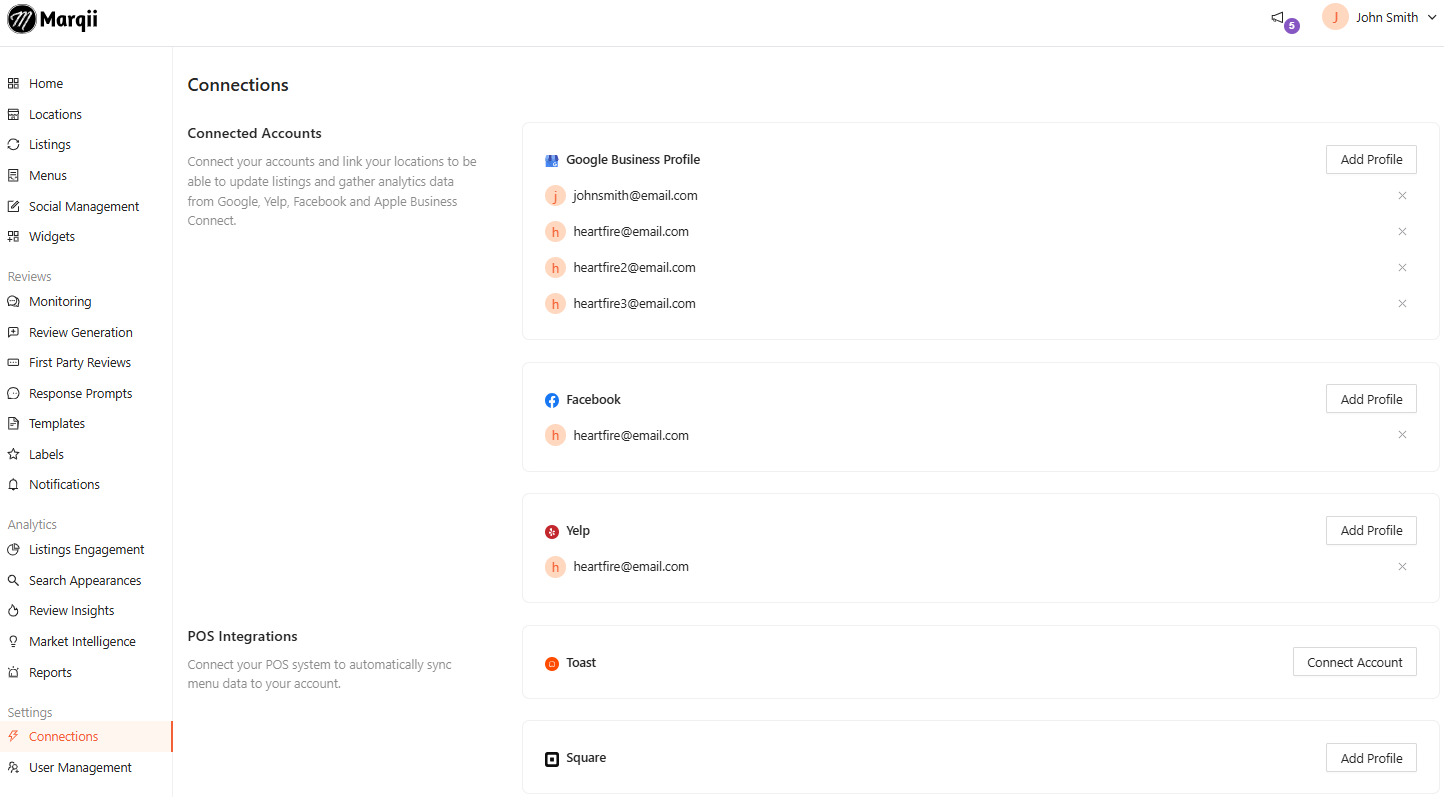
To begin the integration process visit the Connections page and click on the "Connect Account" button next to Toast in the POS Integrations section.
You will then be given the following steps to complete within your Toast account:
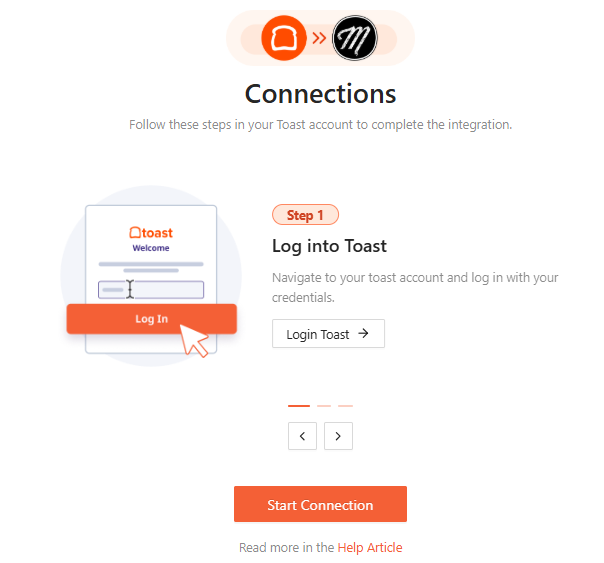
Enable the Marqii Tile in Toast
Go to the Integrations portal in your Toast account
Navigate to Browse & Purchase
Add the Marqii tile.
Add your Marqii Account ID
Navigate to Integrations -> Configure Integrations
Go to Marqii Settings
Add your Marqii account ID to the Group ID field for all locations you would like to integrate to Marqii.
Once these steps have been completed within Toast, click on "Start Connection". This process will allow Marqii to begin seeing your locations within Toast.
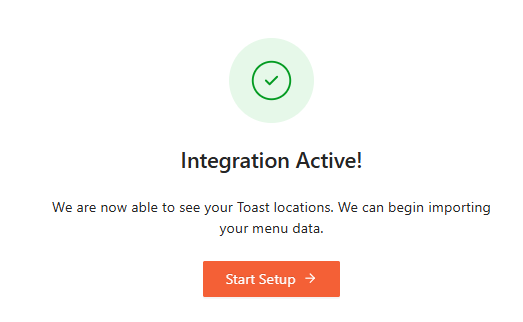
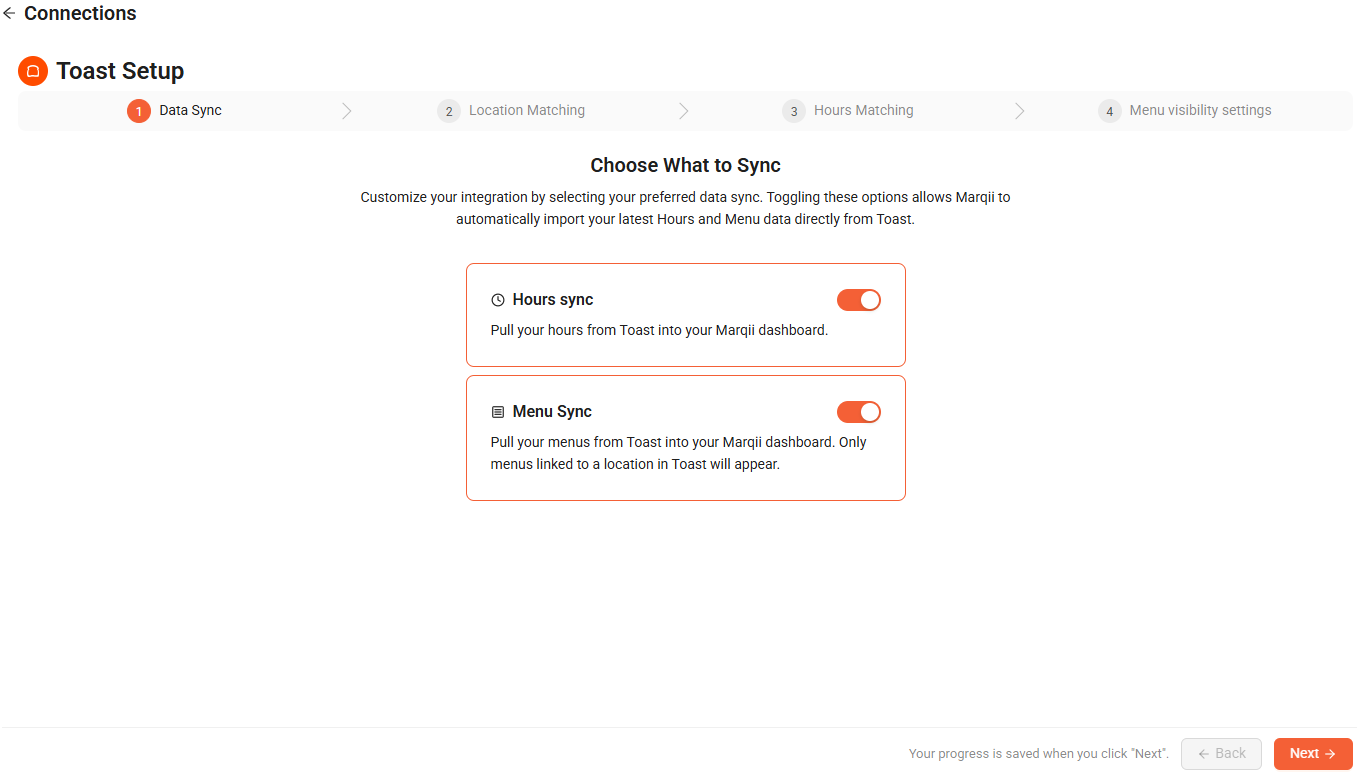
Select Your Integration
Once your integration is active, you will be able to select whether you would like to sync your Toast hours and/or Menu data to Marqii.
Once you've made your selection, click Next.
Note: A minimum of one is required to complete the connection process. You will be able to update your selection anytime after the connection process has been completed.
Map Your Locations
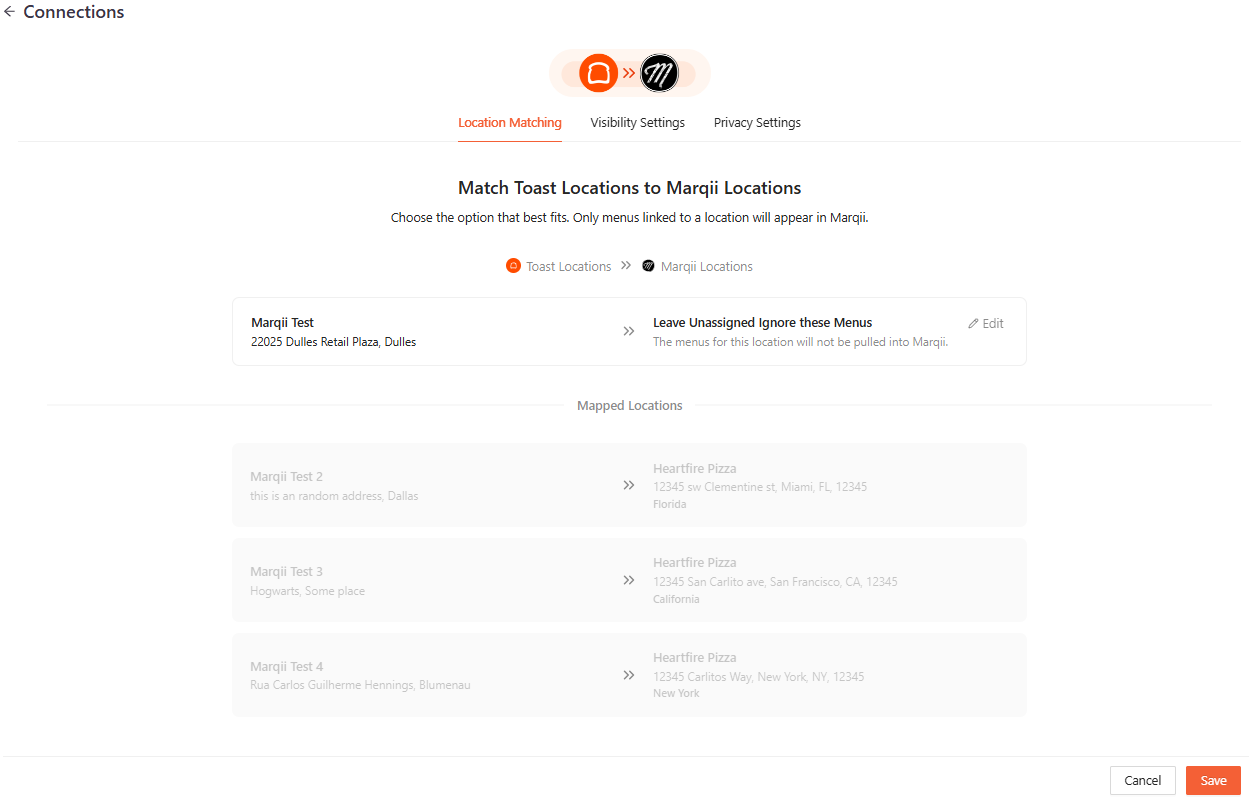
You will then be given the ability to map your Toast locations to your Marqii locations. Mapping your Toast locations to your Marqii locations will automatically assign your Toast menus to your Marqii locations.
Note: Marqii will try to automatically match locations with matching addresses in Toast. If you would like to un-match these pre-matched locations, hover over the matched Marqii location, and click the edit button. This will open the Assign to a Marqii Location dropdown.
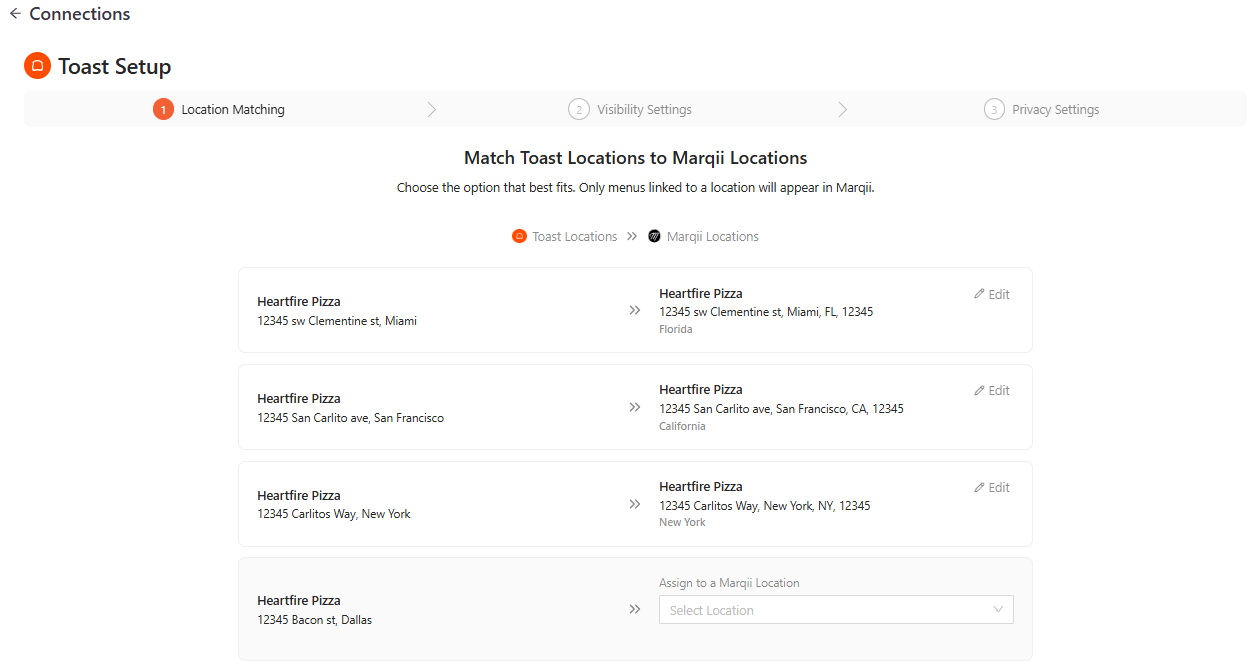
If you do not wish to map your Toast locations to your Marqii locations you can select:
Leave Unassigned Import Menus and Ignore Hours - this will not import your hours but will still import your menus from your Toast location into Marqii but will leave them unassigned. You can follow the steps here to assign your Toast menus to your Marqii locations. This is only available if you're syncing both hours and menus from Toast.
Leave Unassigned Import these Menus - this will still import your menus from your Toast location into Marqii but will leave them unassigned. You can follow the steps here to assign your Toast menus to your Marqii locations. This is only available if you're only syncing menus from Toast.
Leave Unassigned Ignore Hours & Menus - selecting this will not import the menus for the Toast location. This is only available if you're syncing both hours and menus from Toast.
Leave Unassigned Ignore Menus - selecting this will not import the menus for the Toast location. This is only available if you're only syncing menus from Toast.
Leave Unassigned Ignore Hours - selecting this will not import the menus for the Toast location. This is only available if you're only syncing hours from Toast.
Visibility Settings
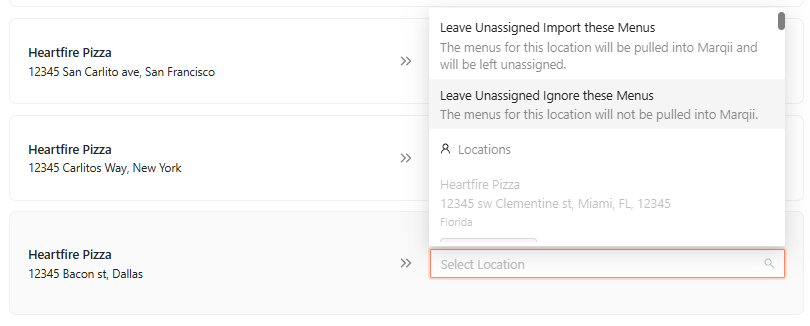
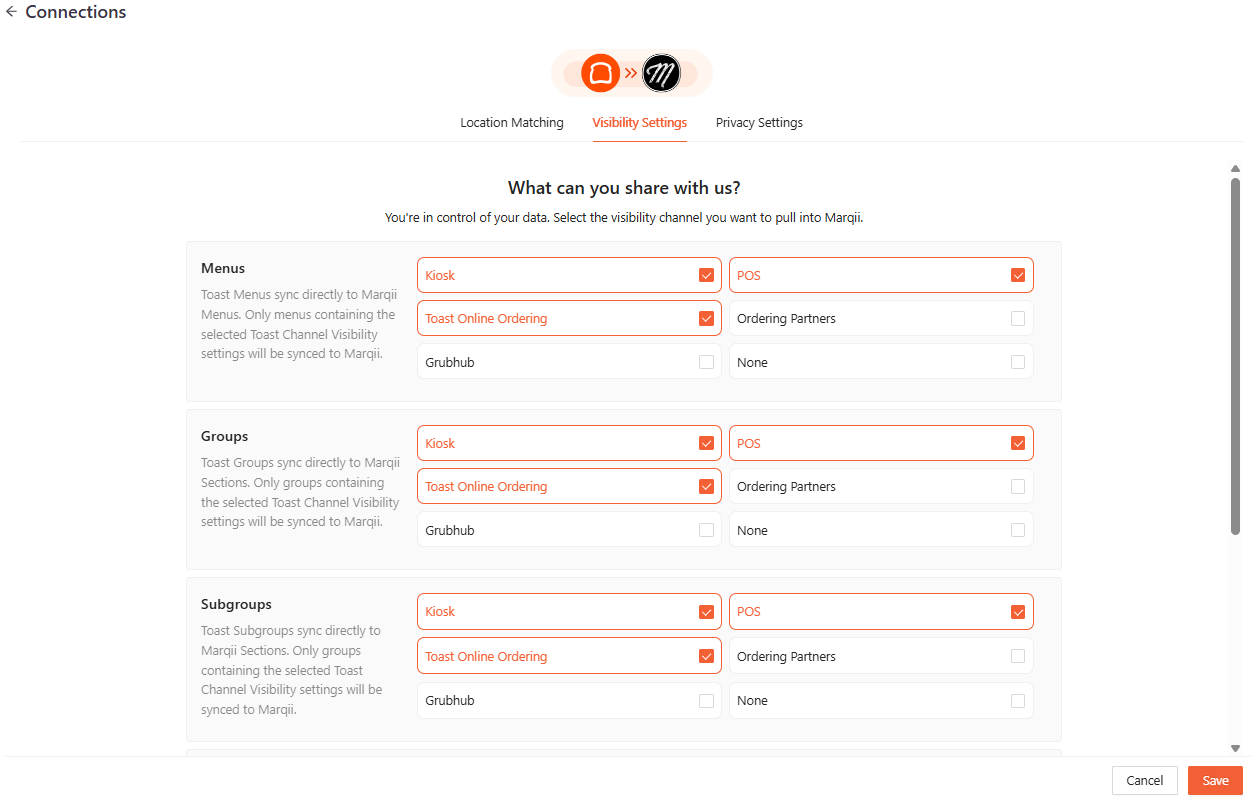
Once you have mapped your locations, the Visibility Settings screen allows you to control exactly which Toast data is pulled into Marqii. This ensures that only menus, groups, subgroups, and items that are intended for public facing listings are synced.
Marqii pulls the "Channel Visibility" settings directly from your Toast account. For each level listed above, you can check or uncheck the specific Toast channels you want to sync. These channels include:
POS: Pulls your standard in-house menu used for table service and walk-up orders.
Toast Online Ordering: Mirrors the menu currently live on your branded Toast online ordering page.
Ordering Partners (Uber Eats, DoorDash, Grubhub, etc.): Essential for restaurants using external delivery integrations; pulls the menu data assigned to the "Ordering Partners" master channel.
Grubhub: Specifically pulls items and pricing designated for your Grubhub storefront.
Kiosk: Syncs items available on your self-service kiosks or "Order & Pay at Table" devices.
None: Ensures this specific category, item, or option is never pulled into Marqii or displayed on digital listings.
Privacy Settings
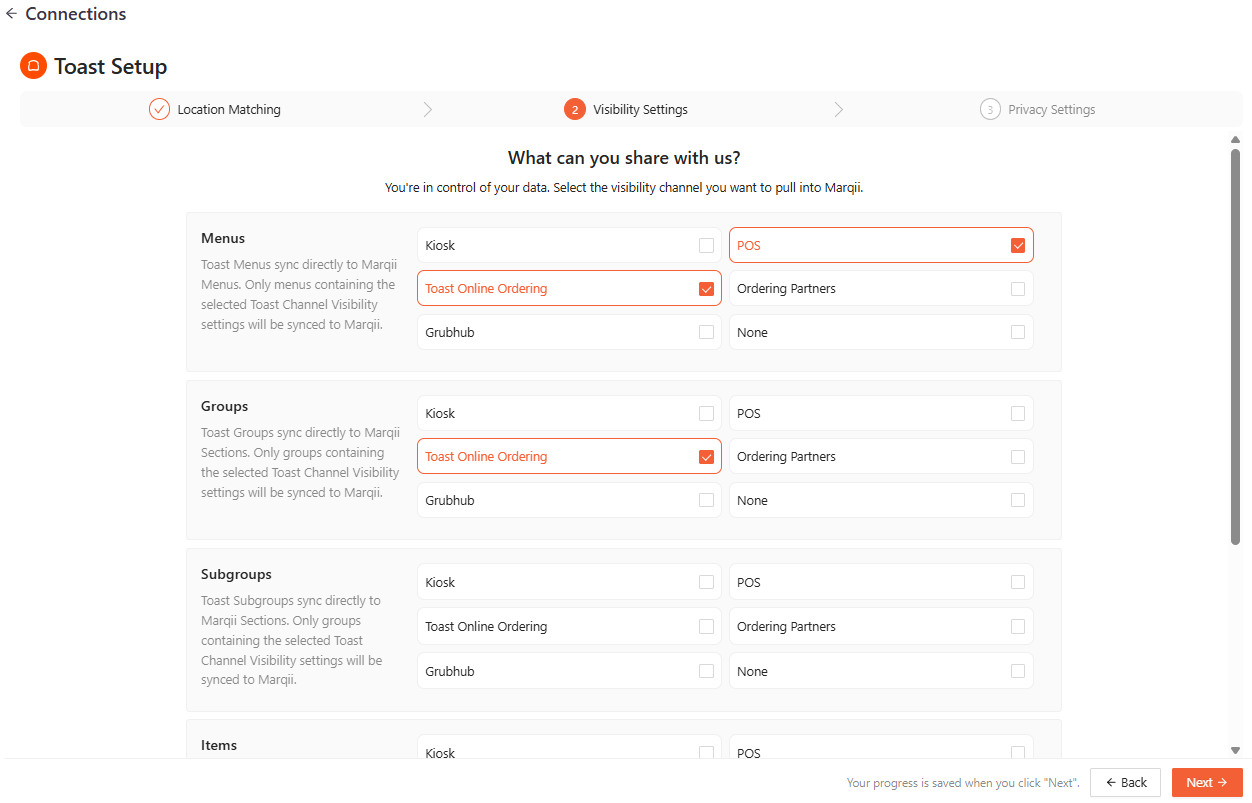
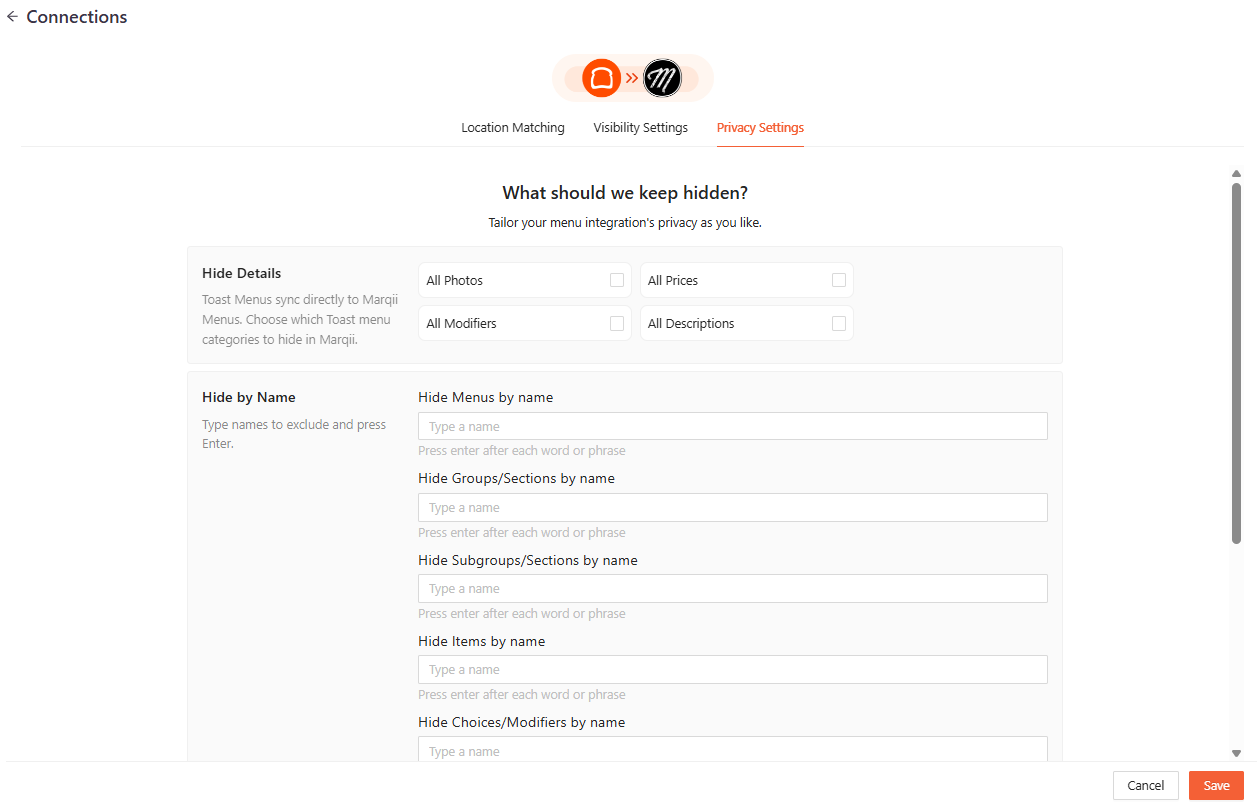
The final step in the Toast integration is defining your Privacy Settings. This screen gives you granular control over the specific data points that sync to Marqii, allowing you to exclude internal-facing information or sensitive details from your public digital listings.
Hide Details (Global Toggles)
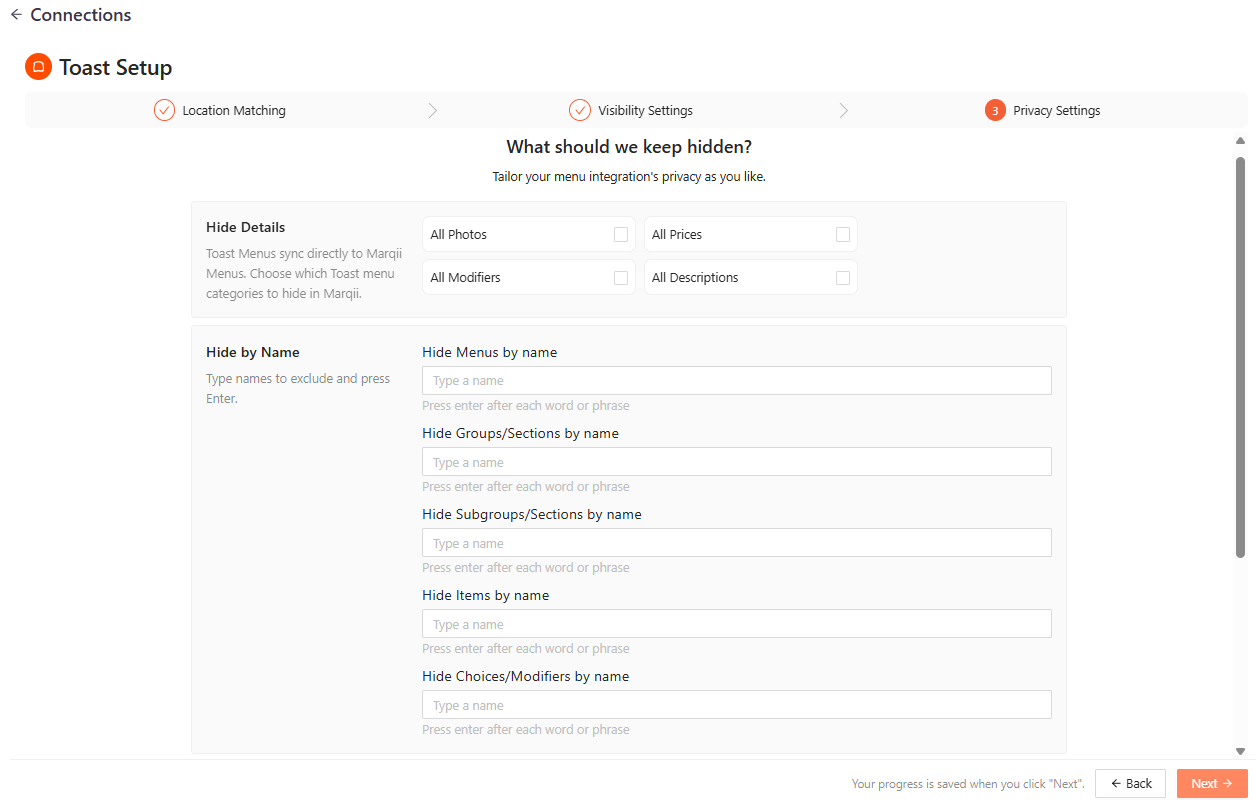
You can choose to hide specific categories of information across your entire menu sync. This is useful if you want to display your menu items but keep certain details private on specific platforms.
All Photos: Exclude all images associated with your Toast menus in Marqii.
All Modifiers: Prevent any item customizations or modifiers from syncing into Marqii.
All Prices: Remove pricing information from your menus in Marqii.
All Descriptions: Hide the detailed text descriptions for all items and groups in Marqii.

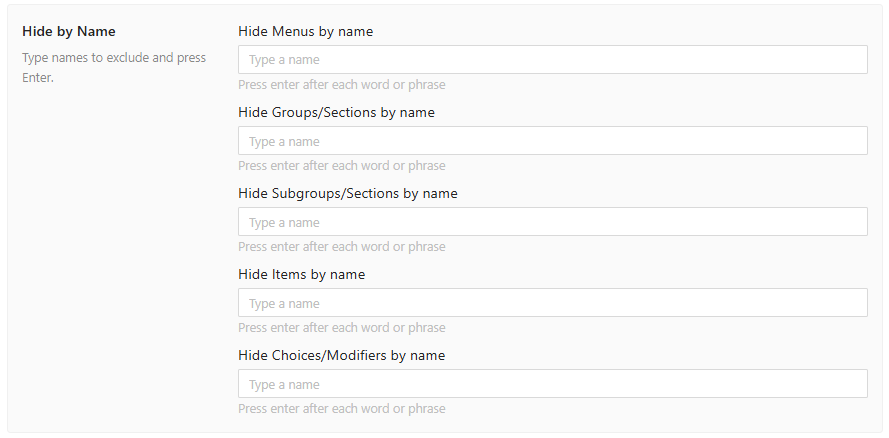
Hide by Name (Targeted Exclusions)
If you have specific internal items (e.g., "Open Liquor," "Employee Meal," or "Misc Charge") that should never be public, you can exclude them by typing their exact Toast name into these fields and pressing Enter. You can filter by:
Menus, Groups, or Subgroups: Exclude entire categories of items at once.
Items: Exclude specific dishes or beverages.
Choices/Modifiers: Exclude specific customization options.
Hide Descriptions
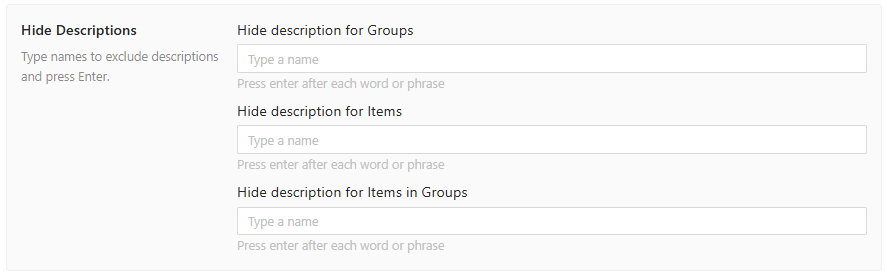
In some cases, you may want to show an item but hide its specific Toast description (which might contain internal kitchen instructions). You can target description exclusions for:
Groups: Hides the summary text for a category.
Items: Hides the description for specific food/drink items.
Items in Groups: Specifically targets item descriptions within a certain group.
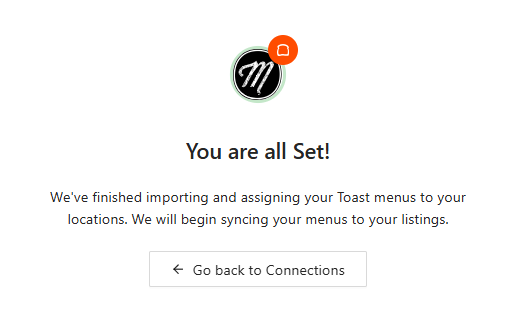
Once you have finalized these settings, click "Next" to finalize and make your Toast to Marqii integration, live.
Toast Visibility Settings
You can revisit the visibility and location mapping settings for your Toast locations and menus by clicking on the Visibility Settings button in the Connections page.

From here you can update your visibility and privacy settings, as well as map new locations in Toast to Marqii locations.
Removing your Toast Integration
If you would like to remove your Toast integration, you can do so by clicking the "X" in the Connections page.

This will keep the current menus that were imported from Toast in Marqii, however, these menus will no longer sync with future changes made in Toast.
If you need any further assistance, feel free to contact support at support@marqii.com or text (512) 967-3739.