Managing Google Action Links
Last updated: October 15, 2026
Managing Google Action Links
Google action links are the buttons that appear on your Google Business Profile letting guests order delivery, place a takeout order, or book a table. Marqii shows every action link on your Google listing in one place, so you can add your own ordering or reservation URL and choose which link Google shows first for each type.
About action links
Google supports three action link types for hospitality businesses, and Marqii manages all three:
Dining Reservation: Where guests go to book a table.
Food Delivery: Where guests go to order delivery.
Food Takeout: Where guests go to place a pickup order.
Action links come from two places:
Provider links are supplied to Google by delivery and reservation partners such as DoorDash, Grubhub, Uber Eats, Postmates, Seamless, and Trycaviar. These are labeled Provider link in Marqii. Because the provider owns them, they can't be edited or removed from Marqii — but you can still choose one as your preferred link.
Your own links are the URLs you add yourself, such as your branded ordering page or your reservation platform. These can be edited and deleted at any time.
Note: Google displays all of the links shown in the Marqii dashboard, with the preferred link labeled and at the top of the list.
Finding your action links
Click Locations in the left-side navigation menu.
Select the location you want to work on.
Scroll to the Google Action Links section, below Business Hours.
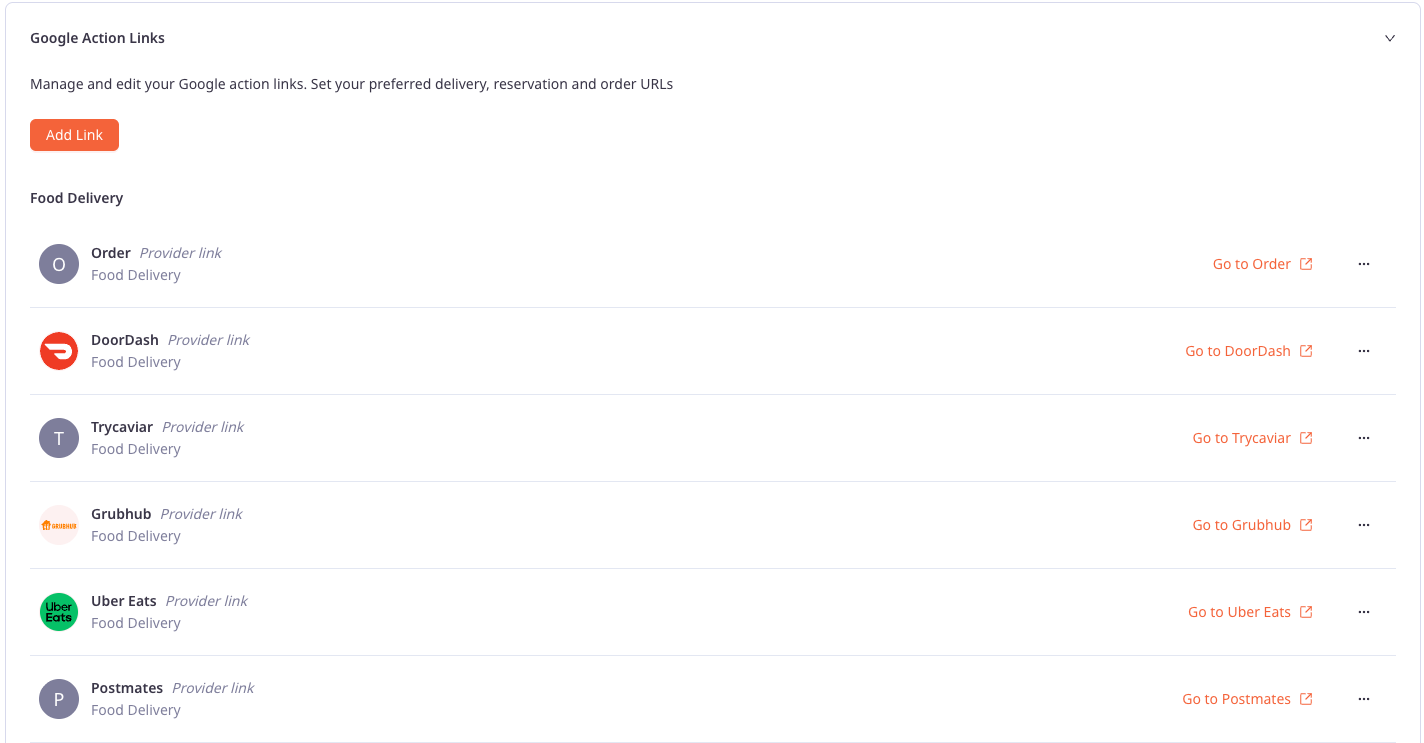
The section lists every action link on the location's Google listing, grouped under a heading for each link type. Each row shows the provider or link name, the link type, and a Go to link that opens the destination URL in a new tab so you can check it.
Adding your own link
In the Google Action Links section, click Add Link.
Choose a Link Type — Dining Reservation, Food Delivery, or Food Takeout.
Enter the URL guests should be sent to.
Click Save.
The new link appears under the heading for the type you selected. To discard the link before saving, click Cancel.
Note: Point action links at a location-specific page rather than a brand homepage. A guest who taps Order on one location's listing should land on that location's ordering page.

Setting a preferred link
You can set one preferred link per link type. This applies to both provider links and your own links.
Find the link you want to feature.
Click the ⋯ menu at the right of the row.
Select Preferred.
Setting a new preferred link replaces the previous preferred link for that type. A location can have a different preferred link for each type — for example, your own ordering page as the preferred Food Takeout link and DoorDash as the preferred Food Delivery link.

Editing or deleting your own link
Links you added yourself can be managed from the ⋯ menu:
Edit: Update the URL.
Preferred: Feature this link for its type.
Delete: Remove the link from your Google listing.
Provider links can only be set as preferred. Because the provider supplies those links to Google directly, they can’t be edited or deleted from Marqii.

If you need any further assistance, feel free to contact support at support@marqii.com or text (512) 967-3739.