Liability Detection & Auto-labeling Rules
Last updated: November 4, 2026
Marqii can label your reviews for you. Turn on Liability Detection to have AI flag high-risk reviews (legal threats, illness, harassment, or discrimination) across all publishers, or set up Auto-labeling Rules to apply any of your labels to incoming reviews based on rating, publisher, content, or location. High-risk feedback gets flagged as soon as it comes in, so your team can follow up quickly without reading every review.
Turning on Liability Detection
Go to Reviews → Labels.
On the Liability Detection card, switch the toggle on.
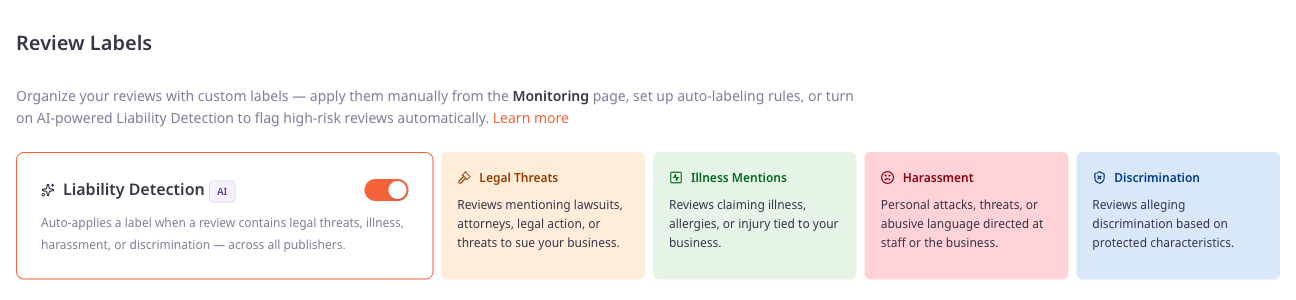
Once it's on, Marqii automatically applies a label when a review falls into one of these categories:
Legal Threats: Reviews mentioning lawsuits, attorneys, legal action, or threats to sue your business.
Illness Mentions: Reviews claiming illness, allergies, or injury tied to your business.
Harassment: Personal attacks, threats, or abusive language directed at staff or the business.
Discrimination: Reviews alleging discrimination based on protected characteristics.
Note: Liability Detection works across all publishers. You don't need to create these labels or set up any rules for it to work.
Creating Auto-labeling Rules
Auto-labeling rules apply one of your own labels to incoming reviews that match the filters you choose. Each label can have more than one rule.
1. Open a label
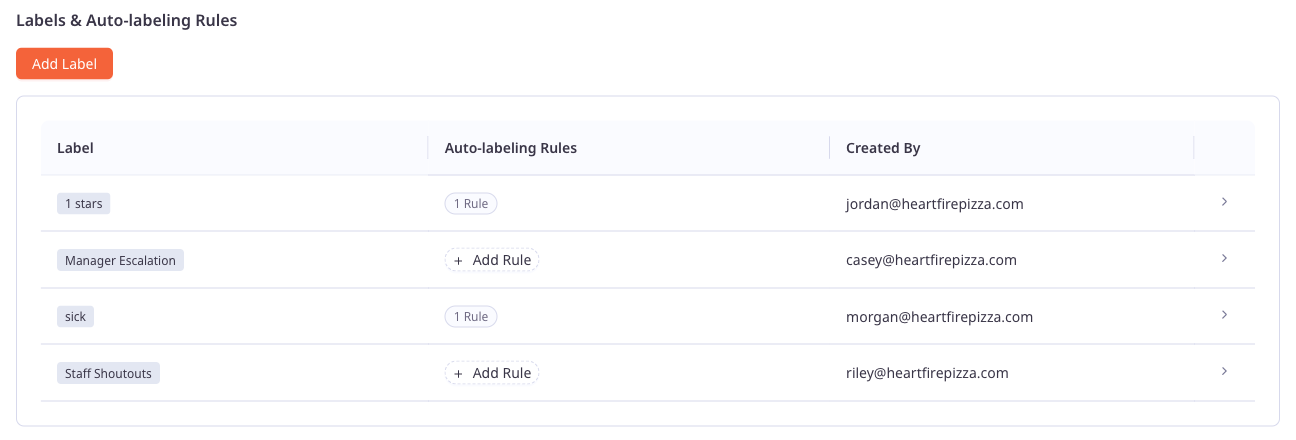
From Reviews → Labels, click Add Label to create a new label, or click an existing label in the Labels & Auto-labeling Rules list to open it. The Auto-labeling Rules column shows how many rules each label has.
2. Add a rule
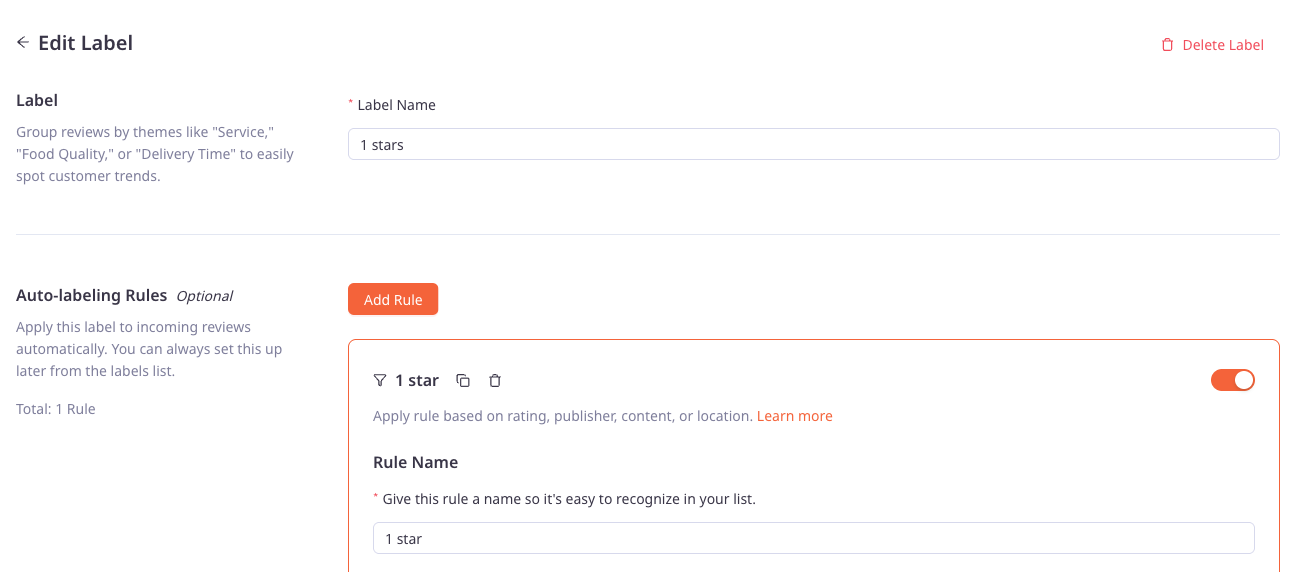
On the Edit Label page, click Add Rule under Auto-labeling Rules. Give the rule a Rule Name so it's easy to recognize in your list.
3. Choose your filters
Under Filters, choose which reviews the rule applies to. You need at least one filter.
Locations: Include or Not Include specific folders or locations.
Publishers: Include or Not Include specific publishers.
Comments: Include or Not Include reviews with or without written comments.
Recommended: Include or Not Include recommended or not recommended reviews.
Ratings: Match a star rating (1–5) using Equal to, Greater Than, Greater Than or Equal, Less Than or Equal, or Less Than.
Content: Match words or phrases in the review text. Press Enter after each entry.
Note: For Content, use Contains for exact matches. Use Similar Match to also catch close matches such as misspellings, though it's less precise.
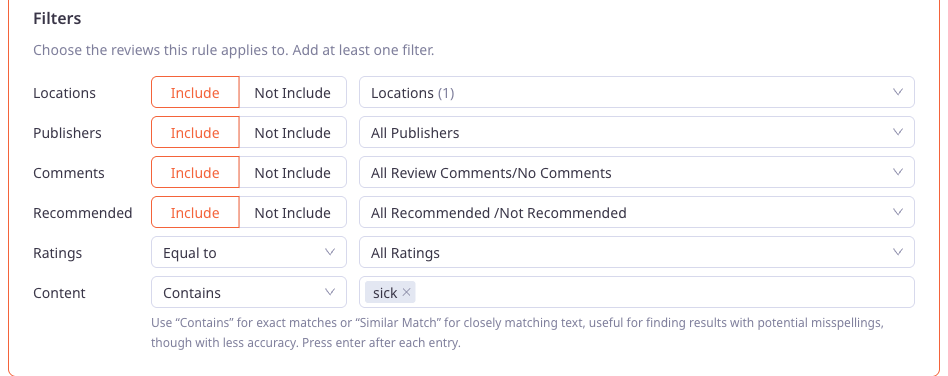
For example, a "Food Safety" label could use one rule with Content Contains "sick", and a second rule with Ratings Equal to 1 star.
4. Save
Click Save. From then on, the rule applies the label to incoming reviews that match its filters.
Seeing labeled reviews in Monitoring
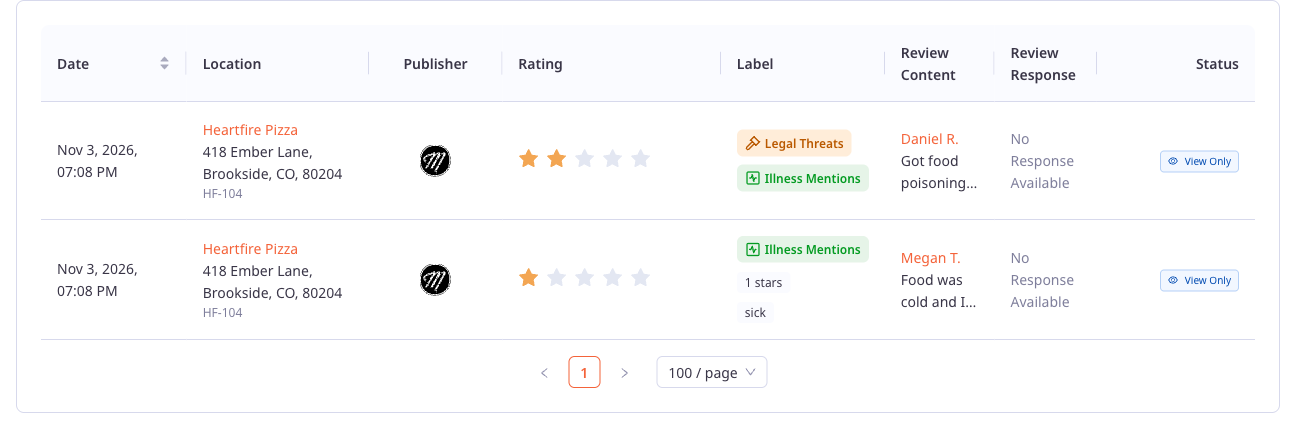
Labeled reviews show up in Reviews → Monitoring with their labels in the Label column. Liability Detection labels appear as colored labels with an icon, and labels from your own rules appear as standard gray labels. One review can carry both kinds. For example, a 1-star review that mentions getting sick can show Illness Mentions from Liability Detection alongside your own "1 stars" and "sick" labels.
You can still add or remove labels on any review by hand from the review drawer. See Review Labels.
Turning off or removing a rule
You can pause or remove auto-labeling at any time:
Turn off a rule: Open the label from Reviews → Labels, switch off the toggle on the rule card, then click Save. The rule stays saved, so you can turn it back on later.
Remove a rule: Open the label, click the trash icon on the rule card, then click Save.
Turn off Liability Detection: On the Reviews → Labels page, switch off the Liability Detection toggle.
Note: Turning off or removing a rule, or turning off Liability Detection, only stops new labels from being applied. Labels already applied to reviews stay in place. To take a label off a specific review, remove it by hand from the review drawer.
If you need any further assistance, feel free to contact support at support@marqii.com or text (512) 967-3739.
Related Articles