Marqii Review Widget
Last updated: October 20, 2026
The Review Widget lets you display your Google rating and reviews directly on your website. Your widget stays current as Marqii syncs your review data, so guests can see what others are saying without leaving your site.
Contents
Why Use a Review Widget
Build guest trust: Show real guest feedback where potential guests are already looking.
Keep content fresh: Your widget updates as Marqii syncs new reviews.
Drive new reviews: Every widget includes a Review us on Google button that links guests to your Google listing.
Match your brand: Choose a layout, fonts, and colors that fit your website.
Note: The Review Widget is available to accounts with the reviews feature enabled and a Google location connected to Marqii. Only users with Full Control or Location Manager access can create and manage Review Widgets. Google is currently the only supported publisher.
Creating a Review Widget
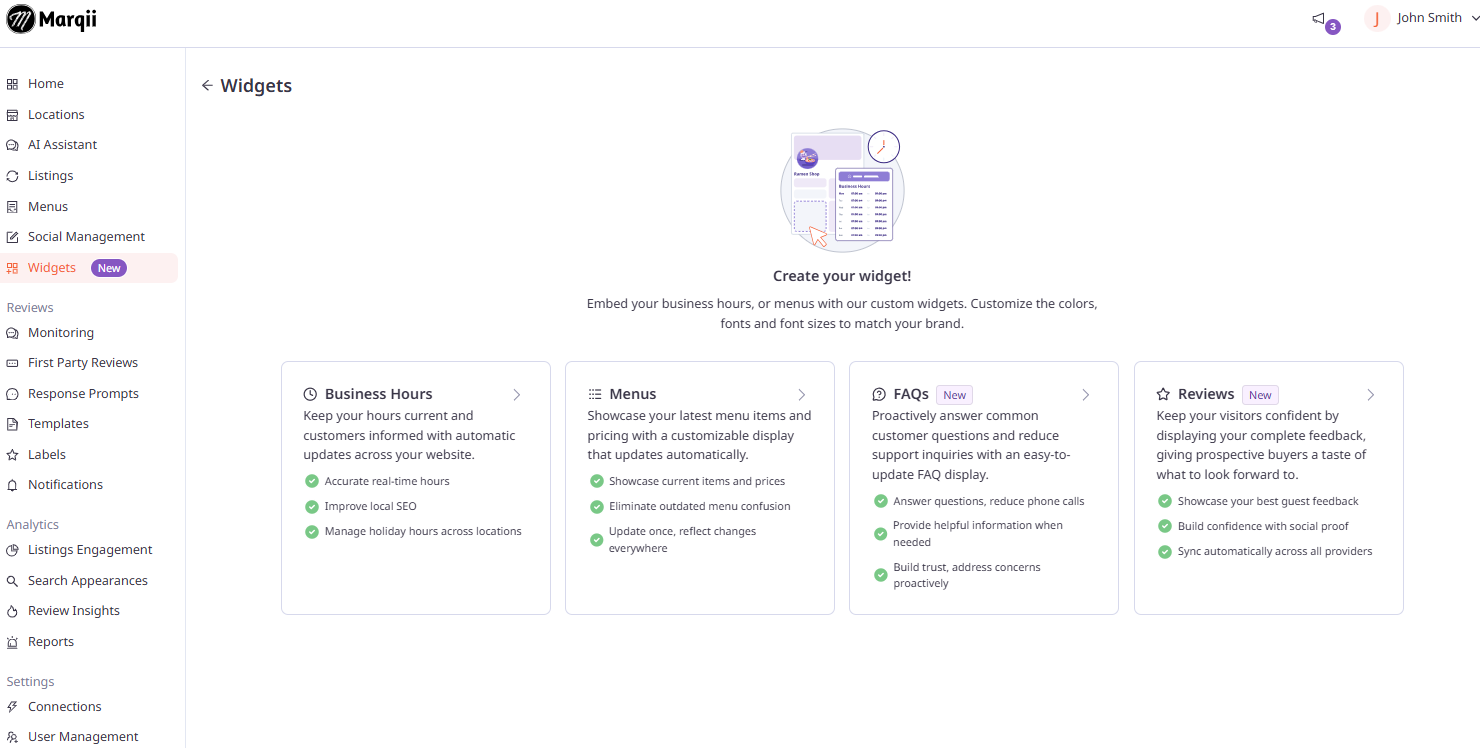
Once logged in to the Marqii Dashboard, click Widgets in the left-side menu.
Click Create Widget.
Select Reviews.
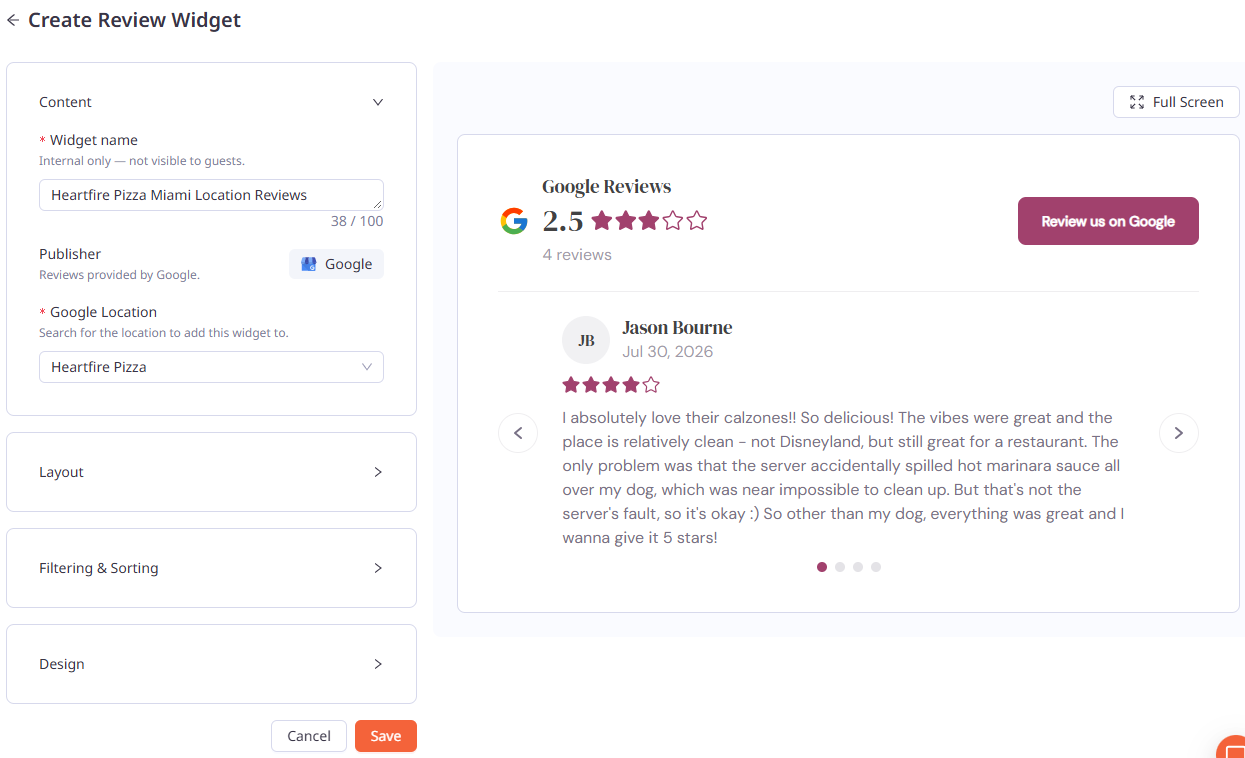
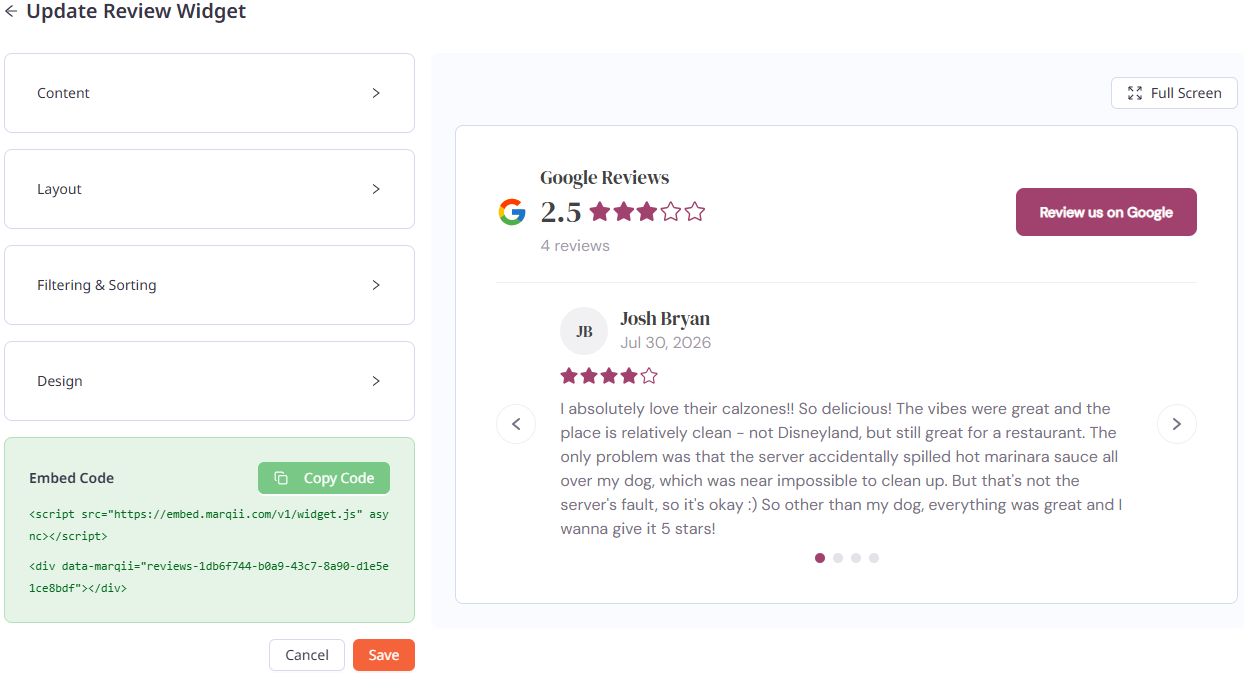
As you build your widget, the preview on the right updates to show your changes. Click Full Screen to view a larger preview.
Content
Widget name: Enter a name for your widget. This is for internal use only and is not visible to guests (up to 100 characters).
Publisher: Shows the review source for this widget (Google).
Google Location: Search for and select the location this widget will display reviews for.
Note: Each widget displays reviews for one location and one publisher. Create a separate widget for each location.
Layout
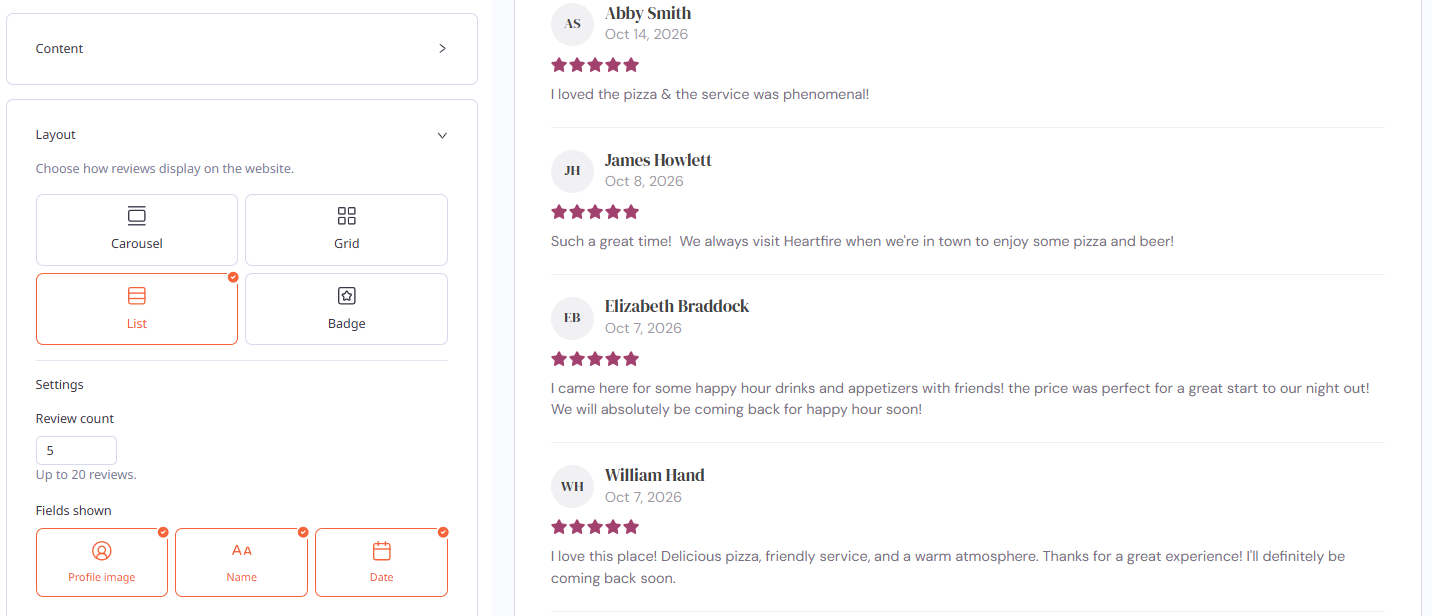
Under Layout, choose how reviews display on your website:
Carousel: Shows one review at a time. Guests use the left and right arrows to cycle through reviews.
Grid: Shows reviews as cards arranged in rows.
List: Shows reviews stacked vertically.
Badge: Shows only your overall rating summary, with no individual reviews.
Settings vary by layout:
Automatic scroll (Carousel only): Cycles through reviews on its own every few seconds.
Review count (Carousel, Grid, List): Set how many reviews to display, up to 20. The default is 5 for Carousel and List, and 20 for Grid.
Rows (Grid only): Set how many rows of reviews display in the grid, up to 4. The default is 3.
Fields shown (Carousel, Grid, List): Select which details appear on each review card:
Profile image
Name
Date
Note: The Badge layout shows the overall rating summary only, so Filtering & Sorting settings don't apply to it.
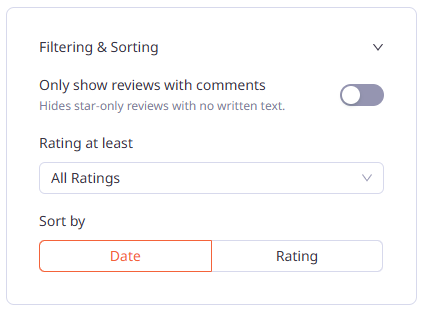
Filtering & Sorting
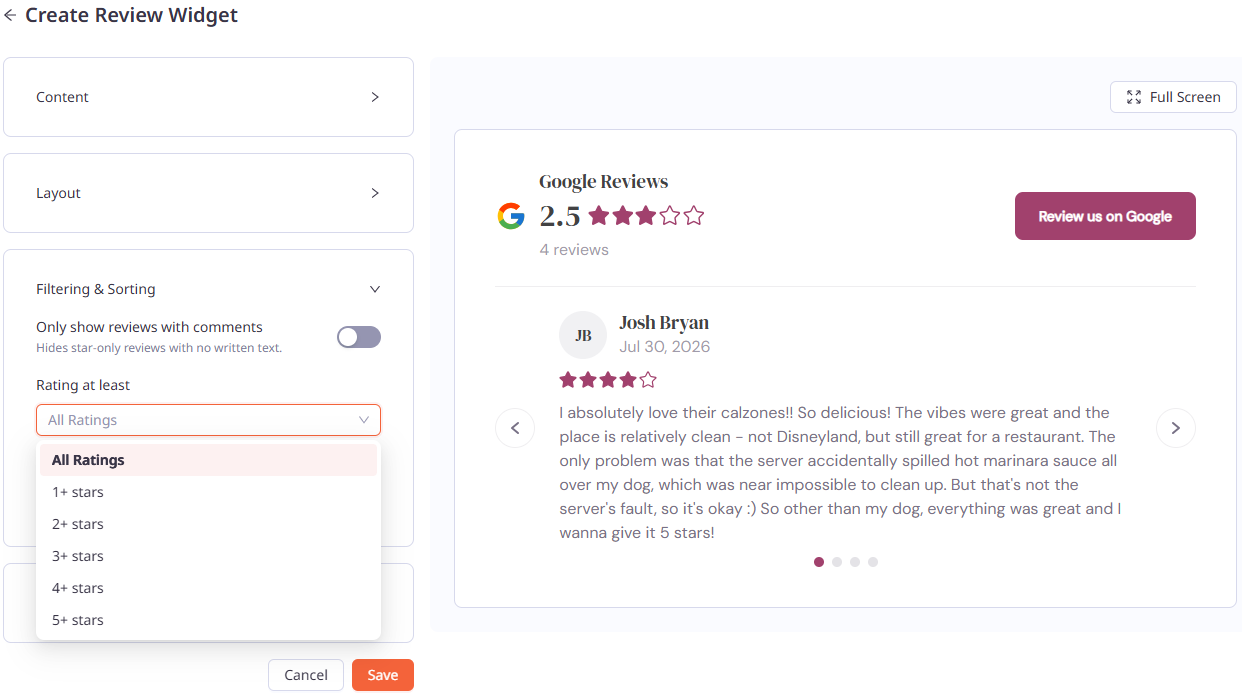
Only show reviews with comments: Hides star-only reviews with no written text.
Rating at least: Choose which reviews to show based on star rating: All Ratings, or 1+ through 5+ stars. The widget shows reviews at the selected rating and above.
Sort by:
Date: Shows the most recent reviews first.
Rating: Shows the highest-rated reviews first.
Design
Choose between two design options:
Preset: Select a ready-made design from the Preset dropdown.
Custom: Set your own fonts and colors.
Both options include the following settings:
Reviewer name: Font, size, and color.
Review: Font, size, and color of the review text.
Button text: Font, size, and color of the text on the Review us on Google button.
Button: Color of the Review us on Google button.
Accent: Color of the star ratings.
Background: Widget background color. Check Transparent to use your website's background instead.

Saving and Embedding Your Widget
Click Save.
Once saved, the Embed Code section appears on the Update Review Widget page.
Click Copy Code.
Paste the code into your website where you want the widget to appear.
Note: Each widget has its own embed code. If you create more than one widget, each one needs to be added to your website separately.
Why Your Overall Rating Is Always Shown
Every widget layout displays your publisher name, overall rating, total review count, and the Review us on Google button. This is required to comply with Google and FTC guidelines, which require your true overall rating and review count to be shown whenever reviews are filtered. This allows you to highlight reviews using filters while staying compliant.
Managing an Existing Widget
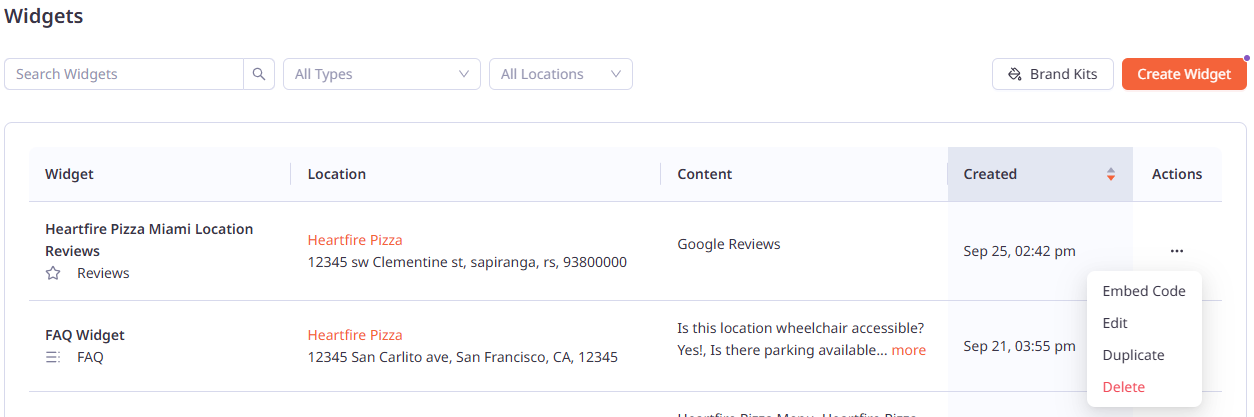
From the Widgets page, find your widget in the list. You can search by name or filter by All Types and All Locations. Click the ... under Actions to open the menu:
Embed Code: View and copy the widget's embed code.
Edit: Update the widget's settings.
Duplicate: Create a copy of the widget. The copy is added to your Widgets list.
Delete: Remove the widget.
When you edit a widget and click Save, your changes appear on your website automatically. You don't need to re-embed the code.
Deleting a Widget
On the Widgets page, click the ... under Actions for the widget you want to remove.
Click Delete.
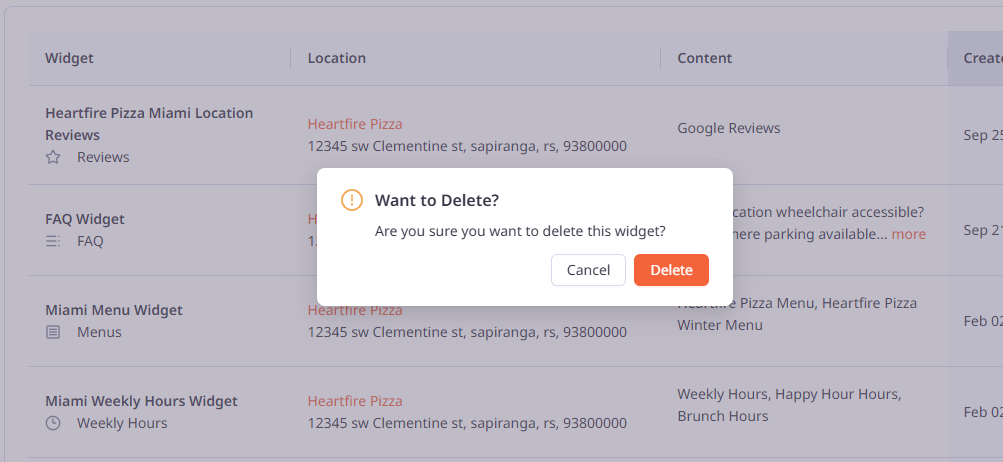
In the Want to Delete? confirmation window, click Delete to confirm, or Cancel to keep the widget.
Note: Once a widget is deleted, it will no longer display on your website.
If you need any further assistance, feel free to contact support at support@marqii.com or text (512) 967-3739.